
How can I edit out reflections from my pictures?
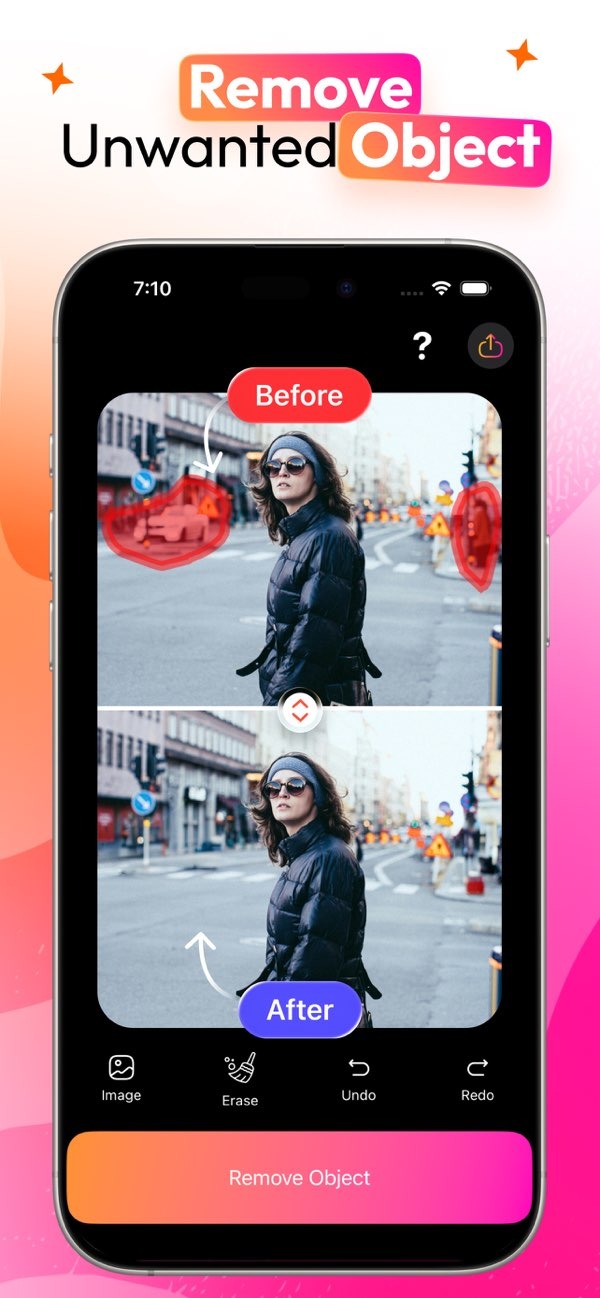
Removing unwanted reflections from photos can improve image quality and keep attention on the subject. With the AI Eraser app on iOS, you can edit out these distractions with a few simple steps. Download AI Eraser to start refining your pictures today.
 |
 |
Understanding Unwanted Reflections in Photos
Unwanted reflections often happen when light hits a shiny surface, like glass or water, and bounces into the camera. This can add distracting shapes or bright areas to the photo. These reflections can pull attention away from the main subject and make the image look busy or less polished. Knowing how to spot and fix reflections can help you improve your photos.
Reflections can be strong or faint. They may cover a large part of the image or show up as small bright spots. They are common indoors, where lamps, windows, and glossy surfaces can create glare. Outdoor photos can also have reflections, such as on water, cars, or metal objects.
Some reflections can add a creative look. Others hide key details or change the mood you wanted. Learning which reflections to remove can make a big difference in the final result.
Using AI Eraser to Remove Reflections
AI Eraser is a helpful tool that makes it easier to remove unwanted reflections from photos. The app uses advanced algorithms to find and remove distractions, so the image looks cleaner and more focused. Here’s how you can use AI Eraser to edit out reflections:
Step-by-Step Guide
- Download and Install: First, download AI Eraser from the App Store and install it on your iOS device.
- Open Your Photo: Launch the app and choose the photo you want to edit from your gallery.
- Select the Reflection: Use the app’s simple tools to mark the area where the reflection appears.
- Erase the Reflection: After you select it, use the AI-powered eraser to remove the reflection. The app will adjust nearby pixels so the area blends in with the rest of the image.
- Review and Save: Review the edit to make sure it looks right. Then save the updated photo to your gallery or share it from the app.
The steps are designed to be easy, even if you do not have much editing experience. The AI in AI Eraser handles most of the work, so you can focus on the photo you want to create.
Common Mistakes and How to Avoid Them
AI Eraser is easy to use, but some common mistakes can affect your results. Knowing what to watch for can help you get better edits:
Over-Editing: A common issue is over-editing, where too much is removed and the photo starts to look unnatural. To avoid this, use the preview option to compare the before and after versions. Make sure the edit improves the photo instead of taking away from it.
Ignoring Lighting Conditions: Reflections are closely linked to lighting. When you edit, think about how light falls on the subject and the scene. After removing a reflection, you may need to adjust brightness and contrast to keep the photo looking balanced.
Not Saving Original Files: Keep a copy of the original photo. This lets you go back if you do not like the result. It also helps if you want to try a different approach without losing the original image quality.
Practical Scenarios for Reflection Removal
Removing reflections can help in many situations, from professional work to everyday photos. Here are a few examples:
Portrait Photography: In portraits, reflections from glasses or jewelry can distract the viewer. Removing them can help keep attention on the person’s face and expression.
Real Estate Photography: For real estate photos, removing window reflections can make rooms look clearer and more welcoming. It can also help the images look more professional.
Travel Photography: Landscapes and city scenes often include reflective surfaces, such as water or glass buildings. Removing unwanted reflections can help the scene’s natural details stand out.
Limitations and Trade-offs
AI Eraser is a strong tool, but it does have limits. Some reflections are complex, such as reflections with detailed patterns or several light sources. In those cases, you may need extra editing steps or more advanced tools. Also, removing a reflection can sometimes change the artistic look you wanted. It helps to decide whether removing it is worth the change in style.
Another trade-off is that heavy editing can reduce image quality. AI Eraser aims to keep results sharp, but too much use can cause pixelation or odd textures. Use the tool with care, and combine it with other edits when needed.
Conclusion
Removing unwanted reflections can improve a photo’s clarity and overall impact. With AI Eraser on iOS, the process is simpler and faster, so you can focus on taking and sharing great images. Whether you take photos for work or for fun, learning how to handle reflections can improve your results.
For more information on AI Eraser and other editing tools, visit the Editr Apps website.
Frequently Asked Questions
Ready to improve your photos by removing unwanted reflections? Try AI Eraser on iOS today. Download now and see the difference.
