How can I edit out shadows from my pictures?
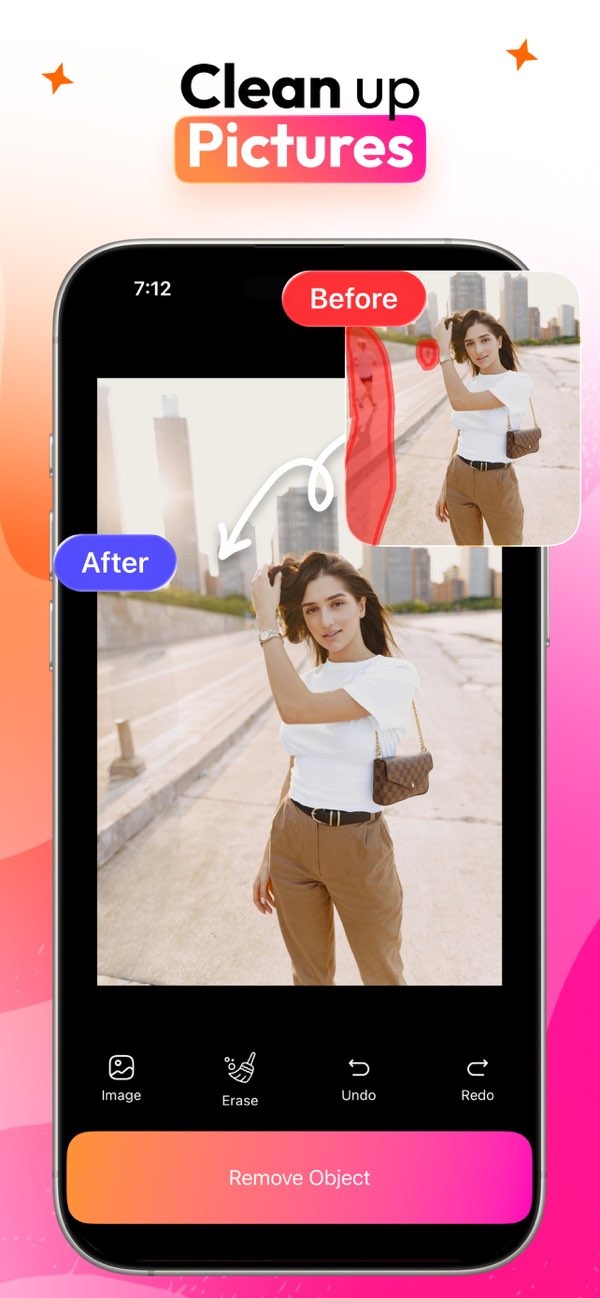
To remove unwanted shadows from your photos, you can use the AI Eraser app on iOS. The app offers a simple way to clean up images so they look neat and shadow-free. You can download the app from the App Store to get started.
 |
 |
 |
 |
 |
Step-by-Step Guide
- Download and Install: Download AI Eraser from the App Store and install it on your iOS device.
- Open Your Photo: Open the app and choose the photo you want to edit.
- Select the Shadow: Use the selection tool to mark the shadow areas you want to remove.
- Apply the Eraser: After you select the area, use the eraser feature. The app will remove the shadow and keep the nearby parts of the image looking natural.
- Review and Save: Check the edited photo to make sure you like the result. Then save the final image to your device or share it from the app.
Common Mistakes and How to Avoid Them
When using AI Eraser, some users run into common issues. Knowing what to watch for can help you get better results:
- Over-Editing: If you remove too much, the photo can look unnatural. Try to keep the edit subtle so the image still looks real.
- Incorrect Selection: Make sure you select only the shadow areas. If your selection is off, you may remove parts of the subject or other important details.
- Ignoring Lighting: Think about the lighting in the whole photo. You may need to adjust brightness and contrast so the shadow removal blends in well.
Limitations and Trade-offs
AI Eraser works well in many cases, but it does have limits. The app may have trouble with complex shadows, especially when they cover fine details. In those situations, you may need manual edits or professional software to get the best result.
Another trade-off is that texture or color may change slightly in the edited area. It helps to compare the edit with the original and decide if the cleaner look is worth the small changes. If you need more control, you may want to try other tools or work with a professional.
Practical Scenarios for Shadow Removal
Here are a few situations where shadow removal can be especially helpful:
- Portrait Photography: Shadows on faces can hide features. Removing them can make facial details and expressions easier to see.
- Product Photography: Shadows can change how a product’s color and shape look. Clean images are important for e-commerce and advertising.
- Event Photography: Photos of special moments look better when shadows do not distract from the people or action.
Conclusion
Removing unwanted shadows can turn an average photo into a more polished image. With AI Eraser, you can do this in a simple and accurate way. For personal photos or professional work, the app offers a clear method to improve your images.
For more information on AI-based photo editing tools, visit Editr Apps.
Frequently Asked Questions
Is AI Eraser suitable for beginners?
Yes. AI Eraser has an easy-to-use interface, so it works well for beginners and for more experienced photographers.
Can AI Eraser be used for professional photography?
Yes. AI Eraser can be used for professional photography and offers detailed editing features that support high-quality results.
Does AI Eraser affect the original image quality?
AI Eraser works to keep the original image quality while removing unwanted elements. However, small changes in texture or color can happen.
How can I share edited photos from AI Eraser?
After you edit a photo, you can save it to your device or share it directly using the app’s sharing options.
Ready to improve your photos by removing unwanted shadows? Download AI Eraser on iOS from the App Store today and try an easier way to edit photos.