
How can I take a screenshot on my device?
To take a screenshot on your device with Pic Stitch, an iOS app, follow a few simple steps. Pic Stitch includes features like stitching long screenshots, photo selection tools, and a One Tap Web Capture feature. You can download Pic Stitch from the App Store.
 |
 |
Understanding Screenshots
Screenshots are digital images of what is on your device’s screen. They help you save details, share content, or fix a problem. You can take screenshots on many devices, such as phones, tablets, and computers. Each device may use a different method.
Types of Screenshots
There are several types of screenshots you can take, such as:
- Standard Screenshot: Captures the part of the screen you can see.
- Scrolling Screenshot: Captures a long web page or document as you scroll.
- Stitched Screenshot: Combines several screenshots into one long image.
How to Take a Screenshot on Different Devices
Each device has its own way to take a screenshot. Here is a guide for common platforms:
iOS Devices
On iOS devices, take a screenshot by pressing the Side button and the Volume Up button at the same time. The screenshot saves to the Photos app. If you need more options, Pic Stitch can stitch long screenshots or help you capture scrolling content.
Android Devices
On most Android devices, take a screenshot by pressing the Power button and the Volume Down button at the same time. Some devices also offer extra tools, like scrolling screenshots, from the notification panel or a screenshot menu.
Windows Computers
On Windows, press the Print Screen key to capture the full screen. You can also use the Snipping Tool or Snip & Sketch to choose the area you want to capture.
Mac Computers
On a Mac, press Command + Shift + 3 to capture the full screen. Press Command + Shift + 4 to select a specific area. By default, screenshots save to the desktop.
Using Pic Stitch for Long Screenshots
Pic Stitch is a helpful tool for making long screenshots. This works well for long chats, long pages, or long documents. Here is how to use it:
Stitching Long Screenshots
To stitch long screenshots with Pic Stitch, follow these steps:
- Open Pic Stitch and select the ‘Stitch It’ option.
- Pick the screenshots you want to combine from your photo library.
- Put them in the order you want, then tap ‘Stitch’ to create one smooth image.
Scrolling Screenshot Feature
Pic Stitch also includes a scrolling screenshot feature. It lets you capture long web pages or documents. Use the One Tap Web Capture feature to capture the full page in one step.
Saving and Sharing Screenshots
After you capture or stitch screenshots, Pic Stitch gives you several ways to save and share them:
Image Saving Options
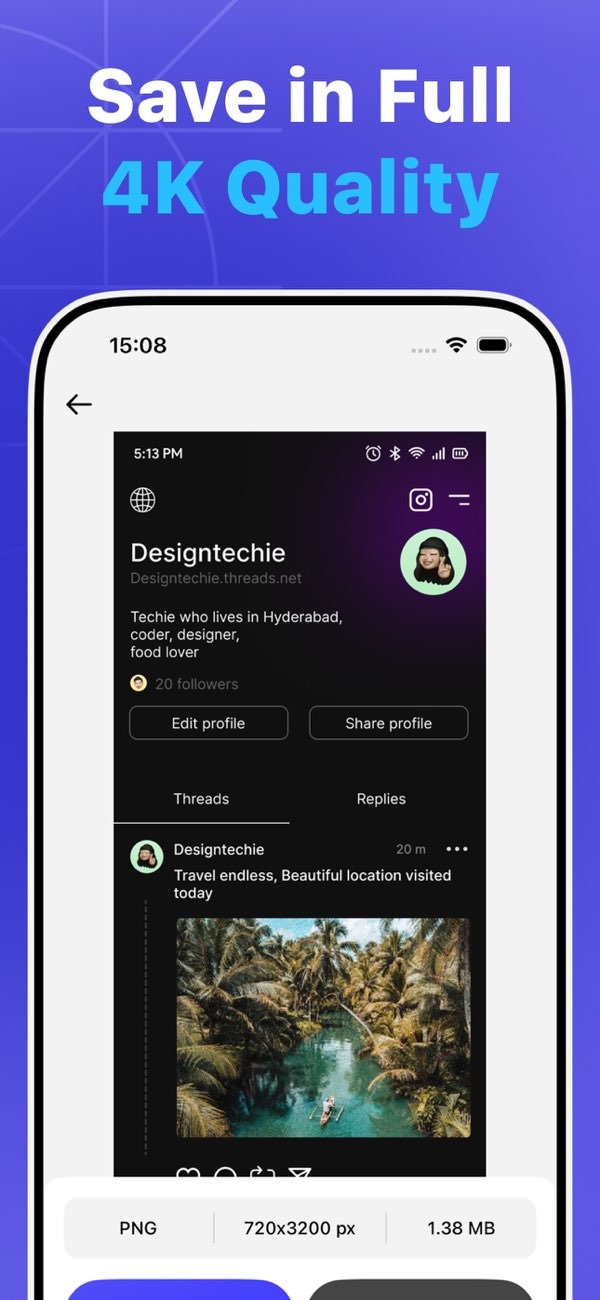
Pic Stitch lets you save images in different formats and resolutions, including 4K quality. This helps you keep image quality high, which can matter for professional work.
Sharing Screenshots
You can share screenshots from Pic Stitch through email, social media, or cloud storage services. This makes it easier to send information quickly.
Common Mistakes and Troubleshooting
Taking screenshots is usually easy, but some issues can come up:
Incorrect Button Combinations
Make sure you press the right buttons for your device. If you use the wrong combination, the screenshot may not work.
Low-Quality Images
To avoid low-quality screenshots, use apps like Pic Stitch that support high-resolution saving options.
Privacy Concerns
Pay attention to what you capture and share. This is important if the screenshot includes personal or sensitive information.
Frequently Asked Questions
How can I take a screenshot on an iPhone?
Press the Side button and the Volume Up button at the same time. The screenshot will be saved in the Photos app.
Can I edit screenshots with Pic Stitch?
Yes. Pic Stitch lets you edit, arrange, and adjust screenshots before you save or share them. It also includes tools for making stitched images.
How do I capture a long chat conversation?
Take several screenshots of the chat, then use Pic Stitch to stitch them into one long image. You can also use the scrolling screenshot feature if it is available.

Is Pic Stitch available for Android?
Pic Stitch is mainly available on iOS. On Android, you can find similar apps with stitching features in the Google Play Store.
Conclusion
Taking screenshots is a useful skill for saving and sharing what you see on your device. You can take a standard screenshot or create a long, stitched image. Pic Stitch offers features that support both. To download the app, visit the App Store. To learn more about the developer, visit Editr Apps.
