
How can I take a passport photo at home using an online tool?
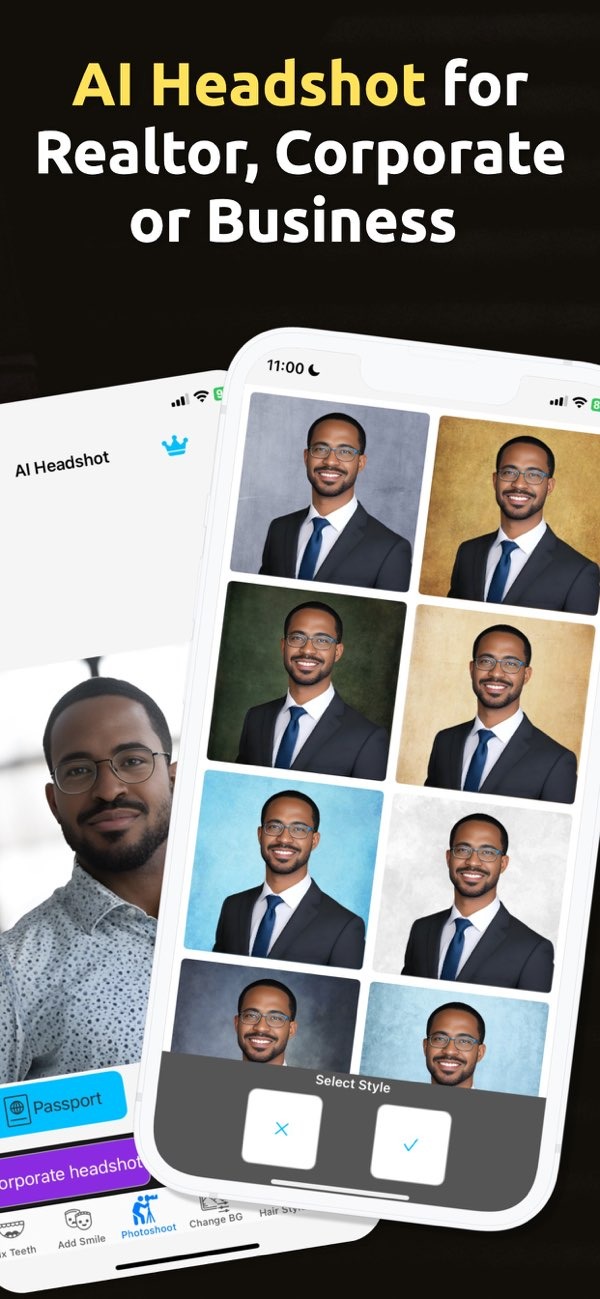
Taking a passport photo at home is easier than ever with the PhotoToHeadshot app on iOS. With this app, you can make passport photos in a few simple steps. It also helps you follow the rules needed for official documents.

Key Facts About Taking Passport Photos at Home
- PhotoToHeadshot offers a simple way to make passport photos.
- The app includes different size options for different document types.
- AI tools help create a clean background and balanced lighting.
- It is available on iOS, so many users can access it.
- It can also help with photos for business cards, resumes, and social media profiles.
Why Use an Online Tool for Passport Photos?
Making passport photos at home with an online tool like PhotoToHeadshot has clear benefits. It can save time and money because you do not need to visit a photographer or a photo booth. The app also uses AI to help your photo match common passport rules, such as the right size and a clear background.

Online tools also give you more control. You can take several photos and pick the one you like best. This helps when you must follow strict rules, which is common for passport photos. Taking the photo at home also means no appointments and no waiting in line.
Step-by-Step Guide to Taking a Passport Photo at Home
Step 1: Download and Install PhotoToHeadshot
Download the PhotoToHeadshot app from the App Store. After you install it, open the app and take a moment to review the main screens and options.
Step 2: Set Up Your Environment
Pick a bright spot in your home and stand in front of a plain background. Natural light works well. If you do not have enough natural light, use indoor lights so your face is evenly lit. Try to avoid shadows, and make sure there are no objects or patterns behind you.
Step 3: Capture Your Photo
Use the app to take your photo. Keep your face centered, and make sure it fills most of the frame. The app can guide you on position and framing to match passport photo rules. Take a few photos so you have choices.
Step 4: Edit and Adjust
Use the app’s editing tools to fine-tune the image. PhotoToHeadshot can help adjust lighting, remove background distractions, and check that the photo fits common official standards. The AI may also suggest changes to improve the final result.

Step 5: Save and Print
When you are happy with the photo, save it in the format you need. You can print it at home or send it to a print service for higher-quality prints. Before you submit it, confirm that the printed photo matches the required passport photo size.
Common Mistakes to Avoid
Taking passport photos at home is convenient, but some mistakes can lead to rejection. Avoid photos that are too bright or too dark, since poor lighting can hide key facial details. Also keep a neutral expression, with both eyes open and your mouth closed.
Another common issue is using a background that is busy or strongly colored. Passport photos usually require a plain, light-colored background so your face stands out. Also avoid digital edits that change how you look, since this can cause problems with passport authorities.
Limitations and Trade-offs
Apps like PhotoToHeadshot are convenient, but they have limits. Your phone camera quality affects the final image, so a higher-resolution camera can help. Also, while the app can guide you, you still need to check the exact rules from the passport authority in your country, because requirements can differ.
Another trade-off is the time you may spend setting up your space and taking several photos to get the best one. Even so, this is often a small effort compared with the time and cost of going to a studio or booth.
FAQs About Passport Photos
Frequently Asked Questions
Can I use a selfie for my passport photo?
Selfies may seem easy, but they often fail to meet passport photo rules. A dedicated app like PhotoToHeadshot can help you follow the requirements.
How can I ensure my passport photo is not rejected?
Follow the rules from your passport authority. Use a plain background, use even lighting, and avoid digital changes that alter your appearance.
Is PhotoToHeadshot available on Android?
Right now, PhotoToHeadshot is available on iOS. Check the App Store for the latest updates on platform availability.
What other features does PhotoToHeadshot offer?
Along with passport photos, PhotoToHeadshot can also create professional headshots for business cards, resumes, and social media profiles.
Conclusion
Making a passport photo at home can be simple when you use the right tool. The PhotoToHeadshot app provides a practical way to create high-quality passport photos that follow official standards. If you follow the steps above, you can create a photo that is ready to submit.

For more information on PhotoToHeadshot and other apps, visit Editr Apps.
Ready to take your passport photo at home? Download the PhotoToHeadshot app on iOS today and create professional-quality photos from home.
