
I’m looking for a way to make a seamless photo collage online, any suggestions on how to start?
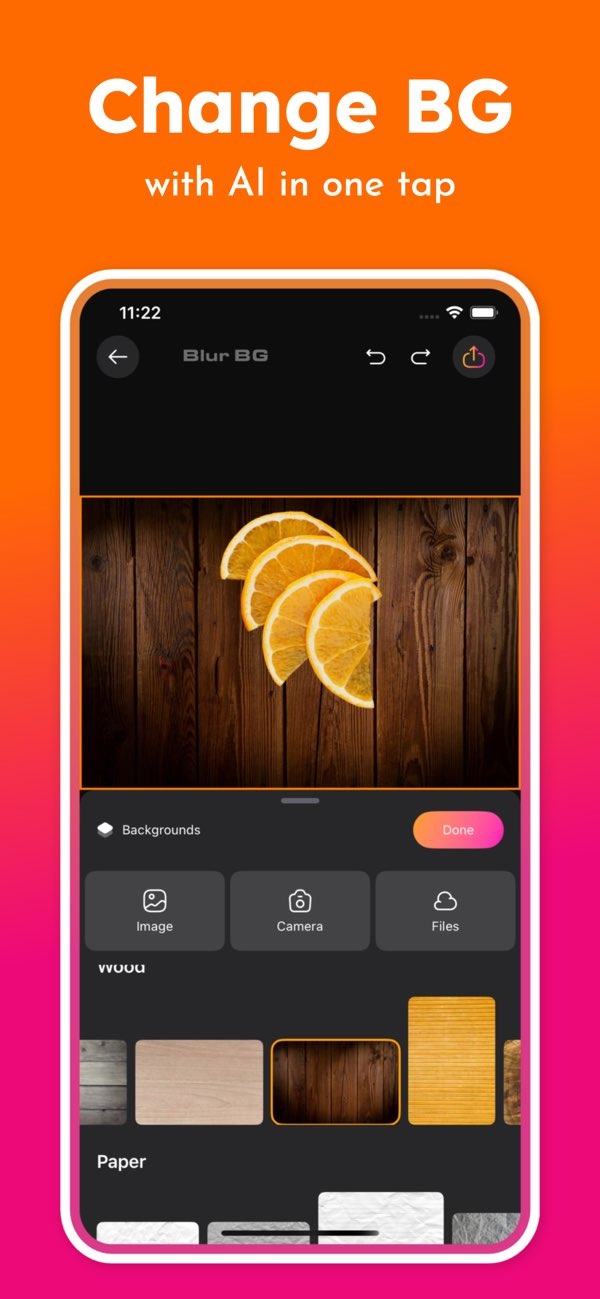
Creating a seamless photo collage online is easy with the Background Editor app on iOS. The app includes AI-powered tools that help you build clean, polished collages with less effort.
 |
 |
Understanding Seamless Photo Collages
A seamless photo collage is a creative way to show several images in one connected layout. Unlike traditional collages, seamless collages blend photos together with no clear borders or gaps. The result feels like one unified image. This style works well for telling a story, showing a timeline of events, or sharing a set of related photos in a pleasing way.
 |
 |
 |
Step 3: Arranging Your Collage
After your images are ready, arrange them into a collage. The app includes over 300 tools to help you shape your layout, with options to resize, rotate, and layer images. Try a few layouts and keep adjusting until the collage looks balanced and easy to view.

Step 4: Finalizing Your Design
Once the layout looks right, use the app’s design tools to finish the collage. You can fine-tune colors, apply filters, and add text or graphics. With over 500 ready-made designs, you can also explore templates and ideas while still keeping your collage unique.

Common Mistakes to Avoid
When making a seamless photo collage, a few common mistakes can reduce the quality of the final design. Here are some issues to avoid:
- Overcrowding: Too many images can make the collage feel busy and hard to read. Aim for balance, and leave enough empty space so each photo has room.
- Inconsistent Colors: Photos with very different color tones can break the seamless look. Use the app’s color tools to bring the images closer together.
- Ignoring Image Quality: Low-resolution photos can look blurry or pixelated when you scale them up. Use high-quality images whenever possible for the best result.
Examples of Seamless Collages
If you need ideas, these examples can help you plan your own seamless photo collage:
Travel Memories: Combine photos from a trip into one collage that shows the mood of the experience. Use the app’s AI tools to remove distractions and highlight the most important parts of each scene.
Family Portraits: Build a collage of family photos that tells a story. You can place images in time order or group them by theme, then add text or graphics to make it more personal.
Nature Scenes: Create a wide, connected collage using landscape photos. Adjust color and lighting so the images match and feel like they belong in the same environment.
FAQs
Frequently Asked Questions
How can I make my collage look professional?
Use high-quality images, keep colors consistent, and use design tools like the ones in the Background Editor app to refine the final look.
Can I use the Background Editor app on Android?
Right now, the Background Editor app is available on iOS. Check the Editr Apps website for updates about Android availability.
Is it possible to add text to my collage?
Yes. The Background Editor app lets you add text and graphics, with options that help you match your style and layout.
How do I ensure my images blend seamlessly?
Choose photos with similar colors, use the app’s AI background tools to reduce visual differences, and arrange the images with care so the transitions look natural.
Conclusion
Creating a seamless photo collage can be both fun and rewarding. With the Background Editor app, you can use AI tools and design features to build polished collages with less manual work. Whether you want to share travel memories, family portraits, or nature scenes, the app gives you the tools to create the look you want.
Ready to begin? Download the Background Editor on iOS and start exploring your options. To learn more about the app and other tools, visit Editr Apps.
