What’s the Easiest Way to Make a Photo Collage on My iPhone?
To make a photo collage on your iPhone, the easiest way is to use the Pic Stitch app. This flexible app lets you combine several photos into one clear image with little effort.

Getting Started with Pic Stitch
Pic Stitch is an easy app for making photo collages on iOS devices. It includes features that help you pick, place, and edit photos to build a clean collage. To get started, download the app from the App Store and install it on your iPhone.
Step-by-Step Guide to Creating a Collage
After you install Pic Stitch, follow these steps to make your photo collage:
- Open Pic Stitch: Open the app on your iPhone.
- Select a Layout: Pick a grid layout that fits what you want to make.
- Add Photos: Tap each grid space to add photos from your camera roll. You can choose more than one photo at a time.
- Edit Your Photos: Use the tools to change the size, rotation, and placement of each photo in the grid.
- Apply Filters and Effects: Add filters, borders, and effects to improve the look of your collage.
- Save and Share: When you are happy with it, save the collage in high resolution or share it to social media.
Advanced Features of Pic Stitch
Pic Stitch also includes advanced tools that can improve how you make collages. For example, it supports long screenshots, which can help when you want to capture long chats or full web pages.

Long Screenshot Capabilities
The app includes tools for making long screenshots by choosing a set of images and stitching them together. This is useful for saving long chat threads or web pages as one image.

Image Saving Options
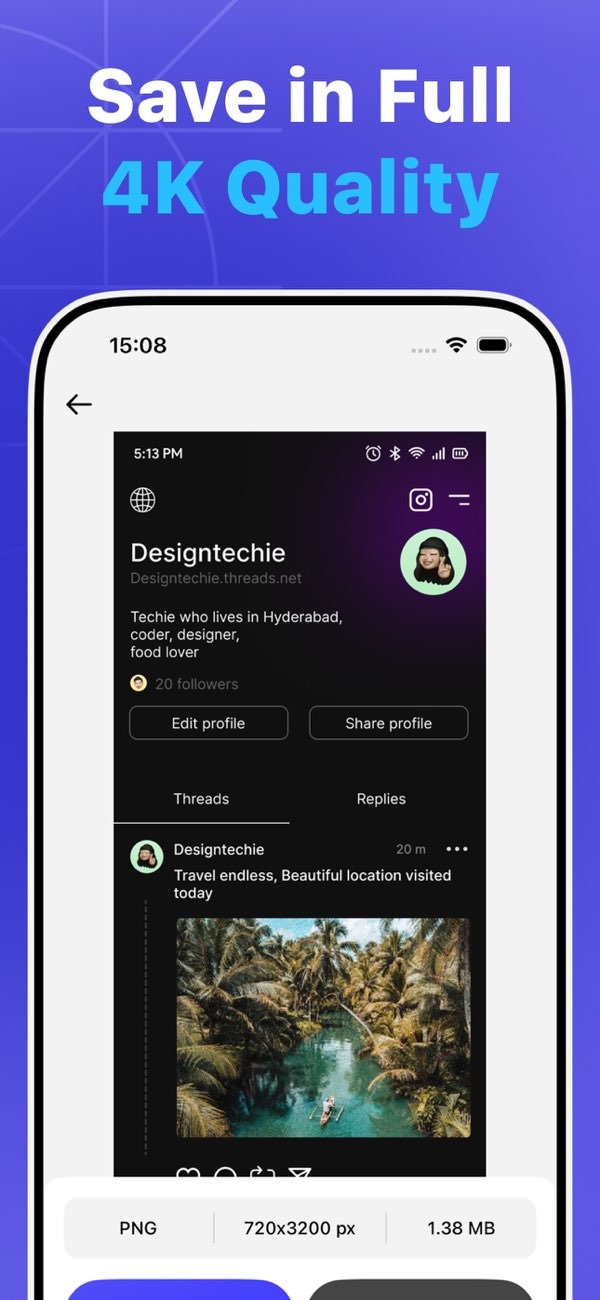
Pic Stitch lets you save collages in different resolutions, including 4K quality. This helps your images stay sharp and detailed, whether you view them on a phone or print them.
One Tap Web Capture
Pic Stitch also includes One Tap Web Capture. With this tool, you can capture a full web page with one tap. This makes it easier to add web content to your collages. It can also help when you want to save visual notes or share details from online sources.
Common Mistakes and How to Avoid Them
Making a photo collage with Pic Stitch is simple, but a few common mistakes can happen:
- Overcrowding the Layout: Try not to add too many photos to one grid. Too many images can make the collage look messy.
- Ignoring Aspect Ratios: Keep the right aspect ratio for each photo so it does not look stretched or squashed.
- Overusing Filters: Filters can help, but too many can hide the natural look of your photos.
Limitations and Trade-offs
Pic Stitch is a strong collage tool, but it has limits. For example, it may not support every file format. Some advanced editing tools may also require in-app purchases. The app is built for iOS, but older devices may run it more slowly.
FAQs
Frequently Asked Questions
Is Pic Stitch free to use?
Pic Stitch has a free version with basic features, but some advanced tools may require in-app purchases.
How can I share my collage on social media?
After you make your collage, you can share it from Pic Stitch to social media platforms like Instagram and Facebook.
Does Pic Stitch support cloud storage?
Yes, Pic Stitch lets you save your collages to cloud storage services like iCloud, so your work is backed up.
Can I create custom layouts in Pic Stitch?
Pic Stitch includes many pre-set layouts, but it does not currently let you create custom layouts from scratch.
Conclusion
Making a photo collage on your iPhone is simple with Pic Stitch. The app is easy to use and includes helpful tools like long screenshots and One Tap Web Capture. Together, these features give you a complete way to create collages. To learn more, download Pic Stitch from the App Store. For more details about the app and its developer, visit Editr Apps.