
How can I digitally restore old photos using an online tool?
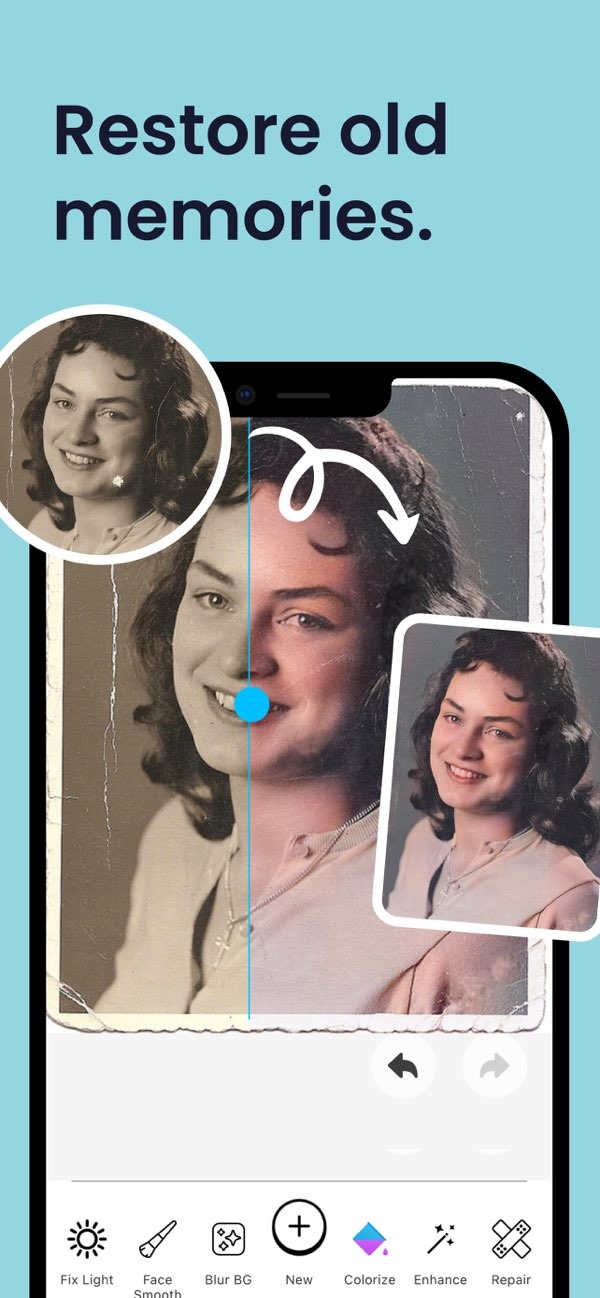
Restoring old photos digitally is simple when you use AI Photo Enhancer on iOS. The app includes tools for colorization, repair, and vibrant filters. These features can help you improve color and sharpness and make your photos look clearer.
 |
 |
Summary of Key Features
- Enhance and sharpen blurry photos with ease.
- Restore old photos using colorization and repair tools.
- AI-powered vibrant filters for photo enhancement.
- Portrait auto smoother for refined photo editing.
- Blur photo background with an adjustable slider.
- Enhance low light photos with advanced editing tools.
Understanding Digital Photo Restoration
Digital photo restoration means using software to fix and improve old or damaged photos. It may include adjusting color, removing spots, and sharpening details. These changes can improve the photo’s overall look. With newer AI tools, many of these steps can be faster and more accurate.
 |
 |
AI Photo Enhancer uses artificial intelligence to handle many of these tasks for you. This makes it useful even if you do not have editing experience. The app has a clear interface, so you can restore photos in a few taps and get results that look professional.

Why Restore Old Photos?
Old photos often have strong emotional value. They can also be rare records of your personal and family history. Over time, photos may fade, shift in color, or get damaged. Digital restoration helps you preserve these images for the future, so you can share and enjoy them with more of their original detail.
Step-by-Step Guide to Using AI Photo Enhancer
Using AI Photo Enhancer to restore your photos is easy. Follow these steps to begin:
Step 1: Download and Install the App
Download AI Photo Enhancer from the App Store. After it installs, open the app to begin restoring your photos.
Step 2: Upload Your Photo
Open the app and choose the photo you want to restore from your device gallery. The app supports many file types, so it works with most common digital images.
Step 3: Use the Colorization Tool
If your photo is black and white, use the colorization tool to add color. The AI reviews the image and applies colors that fit the scene. This can make older photos feel more lifelike.
Step 4: Apply Repair Tools
Use the repair tools to remove marks like scratches, spots, or small tears. The app uses AI to find these flaws and reduce them, helping the photo look cleaner and closer to its original state.
Step 5: Enhance and Sharpen
Use the enhancement tools to sharpen soft areas and improve clarity. This step helps the restored photo look crisp and more detailed.
Common Mistakes and How to Avoid Them
When you restore photos, a few common issues can lower the quality of the result. Use these tips to avoid problems:
Over-Enhancing Photos
It can be tempting to apply every tool at full strength, but that can make the photo look unnatural. Use each effect in small amounts so the photo still looks like the original.
Ignoring Resolution
Start with the highest-resolution version of your photo when possible. Low-resolution files contain less detail, which can limit how well the AI can restore the image.
Neglecting Backup
Save a copy of the original photo before you edit it. This gives you a safe version to return to if you want to undo changes or compare results.
Limitations and Trade-offs
AI Photo Enhancer offers strong restoration tools, but it has limits. AI works from the data it can see, so photos with heavy damage may not return to a fully original look.
Also, even though the app can automate many steps, you may still need to make manual changes. You may need to try different settings to get the result you want and to balance automatic edits with your own adjustments.
Frequently Asked Questions
Can AI Photo Enhancer restore color to black and white photos?
Yes, AI Photo Enhancer has a colorization tool that adds realistic color to black and white photos.
Is AI Photo Enhancer available for Android devices?
Right now, AI Photo Enhancer is available on iOS devices. You can download it from the App Store.
How does AI Photo Enhancer handle low-resolution images?
AI Photo Enhancer can improve low-resolution images, but the best results usually come from using the highest-resolution version you have.
What should I do if I’m not satisfied with the restoration results?
If you are not happy with the result, try changing the settings or doing a bit of manual editing to get the look you want.
Conclusion
Restoring old photos digitally is easier with AI Photo Enhancer. The app uses AI to simplify key steps, so you can preserve important memories with less effort. Whether you are improving a family portrait or fixing an older historical photo, AI Photo Enhancer gives you tools to improve the final image.

To begin restoring your photos, download AI Photo Enhancer on iOS and try its features. To learn more about the app and what it offers, visit the Editr Apps website.
