
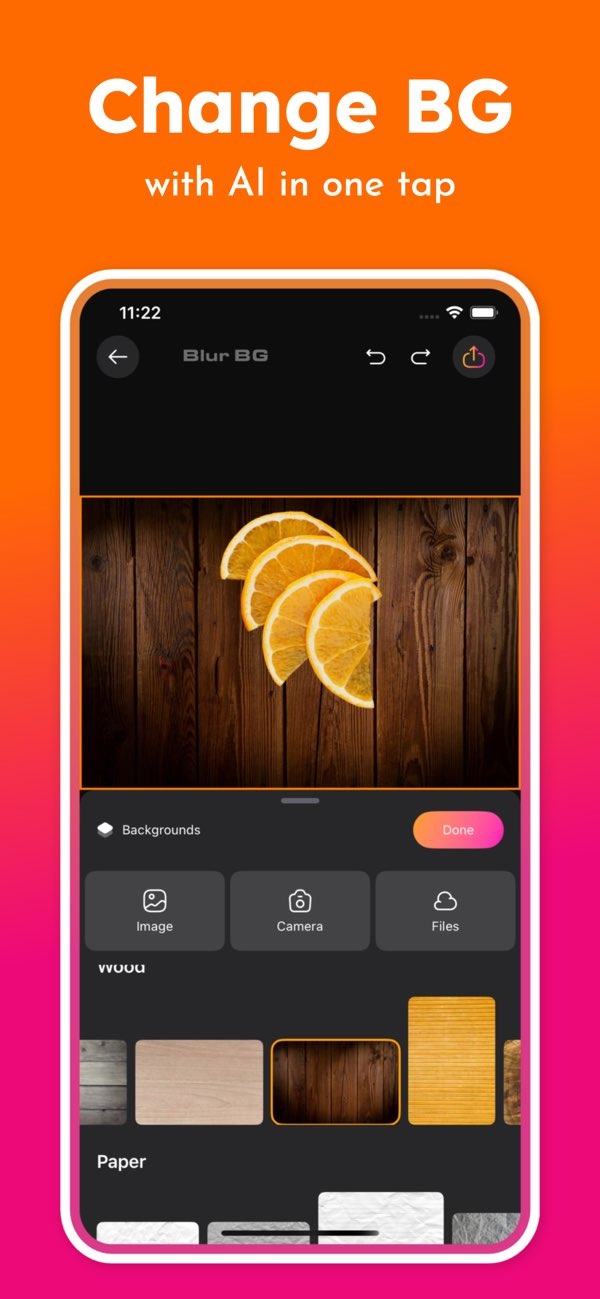
How can I remove the background from an image easily?
To remove the background from an image easily, you can use the Background Editor app on iOS. The app uses AI to remove backgrounds fast. You can also change the background or blur it with one tap. It is made to help users create strong designs with less effort.
 |
 |
Overview of Background Removal
Removing the background from an image can change how your photos look. It helps you highlight the main subject by removing distractions. Whether you are making professional designs or editing personal photos, background removal is an important part of the process.
 |
 |
 |
 |
 |
Step-by-Step Guide to Removing Backgrounds
Using the Background Editor app is simple. Here is a step-by-step guide to remove backgrounds from your images:
- Download and install the Background Editor app from the App Store.
- Open the app and choose the image you want to edit from your photo library.
- Tap the ‘Remove Background’ option. The AI will detect the subject and remove the background.
- If you want, use the ‘Change Background’ or ‘Blur Background’ options to improve the final look.
- Save your edited image or share it directly on social media platforms.
Common Mistakes and How to Avoid Them
Even though the Background Editor app is easy to use, some common mistakes can happen. Knowing about them can help you get better results:
- Not Checking the Edges: Check that the edges of the subject look clean. Make sure there are no leftover parts of the old background. If needed, use the app’s tools to fix and refine the edges.
- Overusing Blur Effects: Blur can help the subject stand out, but too much blur can look fake. Adjust the blur level so the image still looks natural.
- Ignoring Lighting Consistency: When you change the background, the lighting should match the subject. If it does not match, the image can look off. The app includes tools to adjust brightness and contrast to help with this.
Limitations and Trade-offs
While the Background Editor app has strong features, it also has limits. The AI may have trouble with complex images. This can happen when the subject and background share similar colors, shapes, or patterns. In these cases, you may need to make manual edits to get the result you want.
The app is built for speed and ease of use. Users who need very detailed edits may still prefer desktop software with more advanced controls. Still, for many users, the app’s quick workflow and convenience make it a solid option for fast edits.
Frequently Asked Questions
Is the app available for Android devices?
Right now, the Background Editor app is available on iOS. You can download it from the App Store for iPhone and iPad.
How accurate is the AI in removing backgrounds?
The AI in the Background Editor app is made to be accurate, especially when the subject is clearly separated from the background. For more complex images, you may need to do small manual touch-ups.
Can I replace the background with any image?
Yes, you can replace the background with any image from your library. You can also choose from the app’s built-in background options.
What file formats does the app support?
The Background Editor app supports common image formats like JPEG and PNG. This makes it easy to edit, save, and share your images.
Conclusion
Removing the background from an image is now much easier with the Background Editor app. Its AI tools help you improve photos quickly and create clean designs. Whether you create content or just want better personal photos, the app offers a complete set of editing tools.

For more details about the app and its features, visit the developer’s website at Editr Apps.
