
How can I use a selfie stick with my phone for better photos?
Using a selfie stick can improve your photo results. It helps you keep the phone steady and gives you more angles to choose from. To begin, make sure your phone is attached to the stick and held tight. Set the stick to the length and angle you want. Then use the button on the stick, or a Bluetooth remote, to take the photo. After that, you can edit your shots with the Selfie Editor on iOS. It includes tools like teeth whitening, blemish erasing, and more.
 |
 |
Understanding the Basics of a Selfie Stick
A selfie stick is a telescopic pole that lets you hold your phone farther from your body. This helps you capture wider shots and try new angles. Most selfie sticks have a phone holder on one end and a handle on the other. Many also have a button you can press to take a photo. Some models use Bluetooth so you can take photos from a distance.
When you use a selfie stick, make sure your phone is mounted safely. Most holders can expand or tighten to fit different phone sizes. Once your phone is in place, extend the stick to the length you want. This makes it easy to try different views, whether you are taking a photo of yourself or a group of friends.
Step-by-Step Guide to Using a Selfie Stick
Step 1: Attach Your Phone
Start by placing your phone in the selfie stick holder. Make sure the holder grips the phone firmly so it does not slip out. Many holders use rubber grips or pads, which can also help prevent scratches.
Step 2: Connect the Remote
If your selfie stick has a Bluetooth remote, connect it to your phone. Turn on the remote, then turn on Bluetooth on your phone. When you see the remote in your Bluetooth list, select it to pair. After it connects, you can take photos without touching your phone.
Step 3: Adjust the Angle and Length
Extend the selfie stick to the length you want. Then tilt or rotate the phone holder to frame the shot. This is helpful when you want an overhead view or when you need to fit more people into the photo.
Step 4: Capture the Photo
When the shot looks right, press the button on the stick or use the Bluetooth remote to take the photo. Hold the stick steady so the image stays sharp and does not turn out blurry.
Enhancing Your Photos with Selfie Editor
After you take your photos, you can edit them with the Selfie Editor app. The app includes several tools that can improve your selfies, including:
- Teeth Whitening: Change the settings to get a brighter smile that still looks natural.
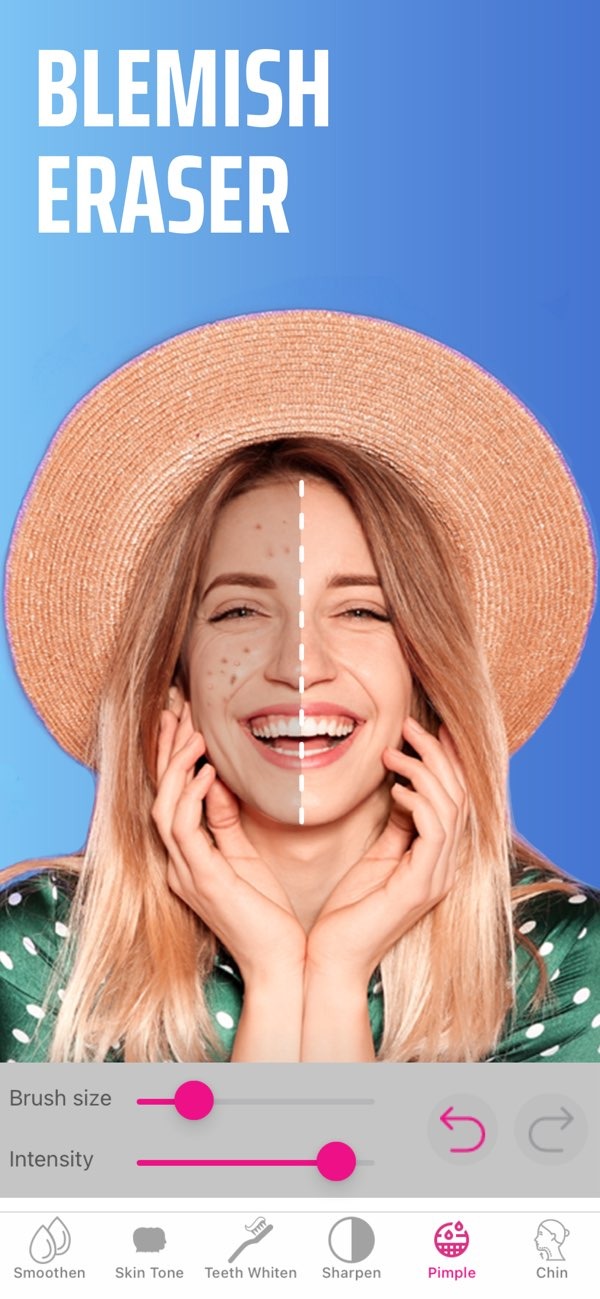
- Blemish Eraser: Use the brush size and strength controls to remove spots and small marks.
- Double Chin Remover: Adjust shadows and sliders to refine the look of your jawline.
- AI Hair Color Changer: Try different colors by changing hue and saturation.
- Makeup Filters: Apply different color options to highlight your features.
Common Mistakes and How to Avoid Them
Using a selfie stick is simple, but a few common mistakes can affect your results. One common issue is not securing the phone well enough, which can lead to drops. Before you extend the stick, check that your phone is locked in place.
Another issue is extending the stick too far. When the stick is too long, it can shake more and cause blur. Keep it at a length you can control. Also watch what is around you, so you do not bump into people or hit objects that could damage your phone.
Practical Scenarios for Using a Selfie Stick
Selfie sticks work well in many situations. When you travel, a selfie stick can help you capture landmarks and scenery without asking someone else to take your photo. In group photos, it can help fit everyone in the frame, so no one has to step out to hold the camera.
For content creators, a selfie stick can also help with vlogging or live streaming. It gives you a steadier way to hold the phone while recording. Since you can change the angle and distance, it is easier to capture different types of shots.
Limitations and Trade-offs
Selfie sticks have benefits, but they also have limits. In crowded places, they can be hard to use and may get in the way. Some locations also ban selfie sticks. Check local rules and venue policies before using one in public.
Also, while a selfie stick can reduce shaking, it cannot remove all motion blur. For sharper photos, you may want extra stabilization tools or editing options in apps like Selfie Editor.
Frequently Asked Questions
How do I connect a Bluetooth selfie stick to my phone?
To connect a Bluetooth selfie stick, turn on the stick’s Bluetooth feature, turn on Bluetooth on your phone, and pair the devices in your phone’s settings.
What are some tips for taking better photos with a selfie stick?
Make sure your phone is attached securely, choose a good length and angle, and keep your hand steady to reduce blur. Try different angles to get more creative shots.
Are there restrictions on using selfie sticks in public places?
Yes, some public places and events may ban selfie sticks for safety or privacy reasons. Check the rules of the location before you use your selfie stick.
How can I enhance my selfies after taking them?
Use the Selfie Editor app to improve your selfies with tools like teeth whitening, blemish erasing, and makeup filters.
If you want to improve your selfies even more, you can download the Selfie Editor on iOS. It includes a full set of tools to refine your photos, so you can adjust details and get the look you want. To learn more about the app and what it offers, visit the developer’s site at Editr Apps.
