
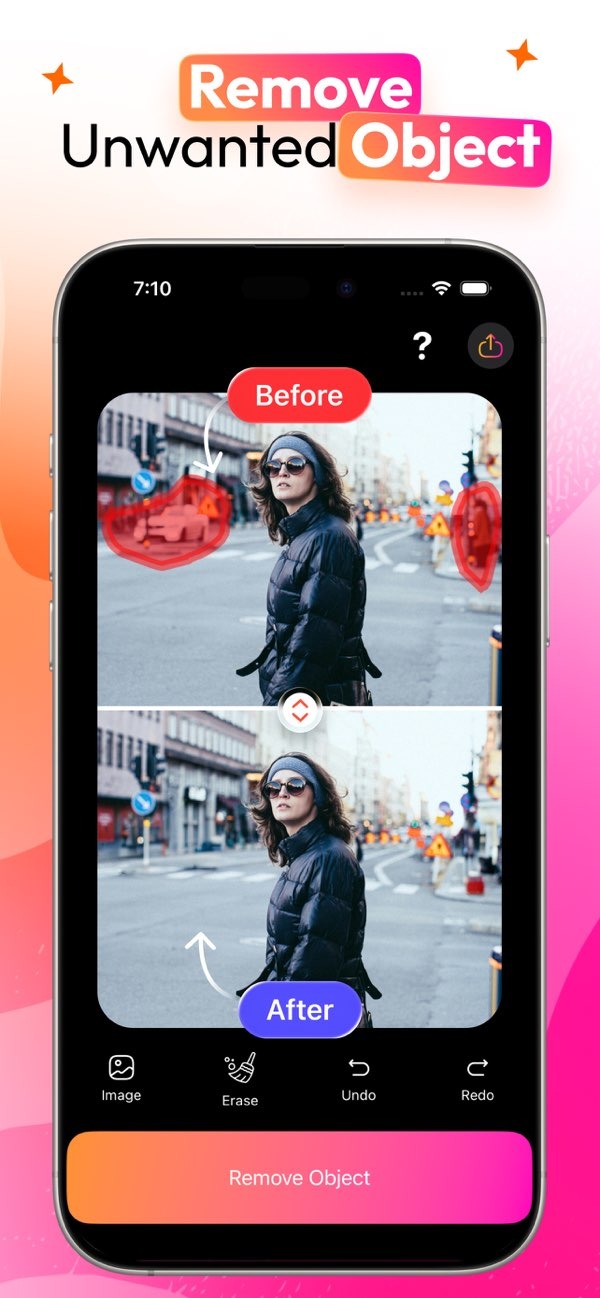
How can I remove unwanted objects from my photos easily?
Removing unwanted objects from your photos is easy with the AI Eraser app on iOS. This tool helps you clean up your pictures by removing unwanted objects, people, or other distractions in just a few taps.
 |
 |
Understanding the Need to Remove Objects from Photos
In photography, getting the perfect shot often means dealing with things you did not want in the frame. It could be a person walking by, a distracting object in the background, or a small blemish. These details can pull attention away from the main subject. That is why the ability to remove objects from photos matters for both professional photographers and everyday users who want better images.

Removing objects can make a photo look cleaner and help your message come through. For example, a travel photo may feel calmer without a crowd. A product photo may look more professional without clutter behind it. This type of editing helps you create images that look polished and clear.
Introducing AI Eraser: A Tool for Seamless Photo Editing
AI Eraser is an app that makes photo editing simple and fast. It uses advanced algorithms to find and remove unwanted objects from your photos, while keeping the result smooth and natural. AI Eraser is available on iOS and is easy to use, so it works well for beginners and experienced editors.
The app has a clear interface that lets you choose what you want to remove. After you select the object, AI Eraser edits the image and fills the removed area with similar colors and textures. This helps the edit blend in and keeps the photo looking natural.
Key Features of AI Eraser
- Precision Editing: Helps you select and remove objects with accuracy.
- Intuitive Interface: Simple design that supports quick edits.
- High-Quality Output: Keeps your edited photos looking sharp and clear.
- Versatile Use: Works for removing people, objects, and other distractions.
Step-by-Step Guide to Removing Objects with AI Eraser
AI Eraser makes object removal simple. Follow these steps for the best results:
Step 1: Download and Install AI Eraser
Download AI Eraser from the App Store. After it installs, open the app and allow any needed permissions so it can access your photo library.
Step 2: Select the Photo
Open the app and pick the photo you want to edit. You can choose one from your library or take a new photo inside the app.
Step 3: Identify and Select the Object
Use the selection tool to mark the object you want to remove. AI Eraser includes precision tools so you can highlight the unwanted element more accurately.
Step 4: Remove the Object
After you select the object, tap the “Erase” button. AI Eraser will process the image, remove the selected object, and fill the area with matching textures.
Step 5: Save and Share
When you are done, save the edited photo to your library. AI Eraser also lets you share the image directly to social media or through messaging apps.
Common Mistakes and How to Avoid Them
AI Eraser makes object removal easier, but some common mistakes can still happen. Knowing what to watch for can help you get better results:
Over-Editing
A common issue is over-editing. This happens when you remove too many things and the photo starts to look unnatural. To avoid this, remove only the most distracting objects and try to keep the photo’s natural balance.
Inaccurate Selections
Another problem is selecting the wrong area or missing part of the object. Use the precision tools in AI Eraser to mark the object carefully. If needed, zoom in so you can make a more accurate selection.
Limitations and Trade-offs
AI Eraser is a strong tool, but it does have limits. Busy backgrounds and detailed patterns can be harder for the app to rebuild. In these cases, you may need to do small manual touch-ups to get the result you want.
Also, AI Eraser works well for most everyday edits, but professional photographers may need more advanced tools for important projects. Knowing these trade-offs helps you use AI Eraser in the right situations.
Frequently Asked Questions
Frequently Asked Questions
Is AI Eraser available for free?
AI Eraser has a free version with basic features. If you need more advanced editing tools, you can choose the pro version.
How does AI Eraser ensure high-quality edits?
AI Eraser uses advanced algorithms to match colors and textures. This helps the edited area blend in with the rest of the photo.
Can I use AI Eraser on Android devices?
Right now, AI Eraser is only available for iOS devices. Android users may need to find another app with similar features.
What types of objects can AI Eraser remove?
AI Eraser can remove many types of objects, such as people, signs, wires, and other unwanted elements in your photos.
Conclusion
AI Eraser is a simple and effective way to remove unwanted objects from photos. Whether you are a professional photographer or a casual user, the app gives you the tools you need to improve your images with less effort. To try AI Eraser, download it from the App Store and start editing your photos.
For more information about AI Eraser and other editing tools, visit the developer’s main site: Editr Apps.
