
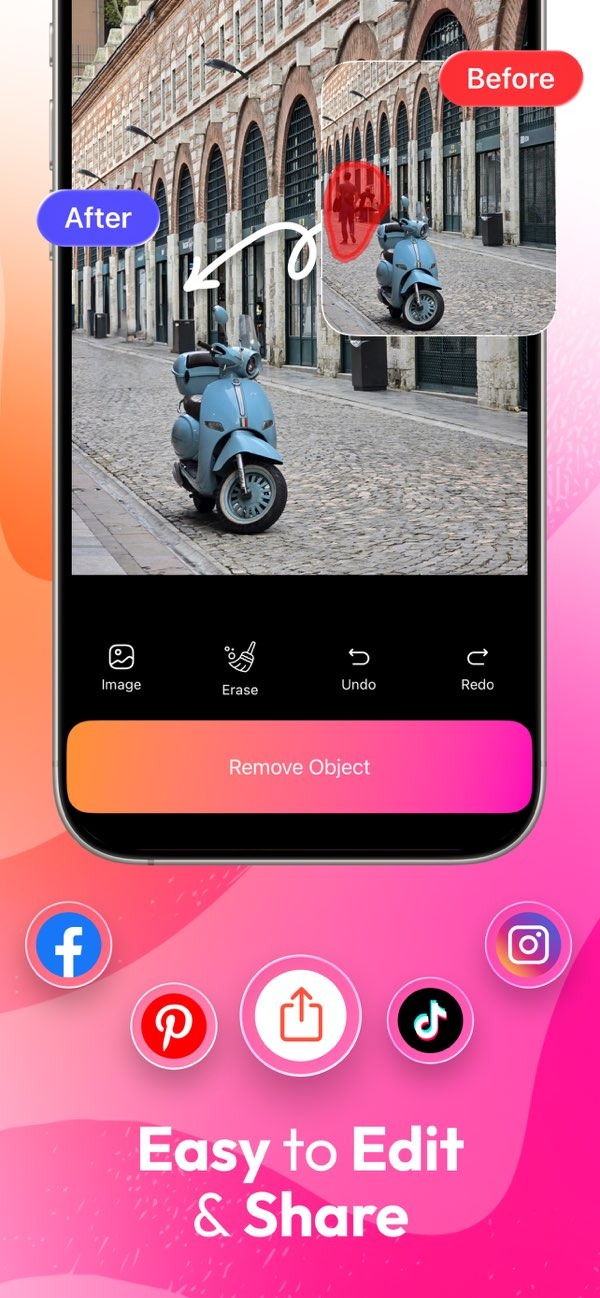
How can I edit and replace the background of a photo easily?
You can edit and replace the background of a photo with the AI Eraser on iOS. This app lets you erase, cut out, and replace parts of photos in a smooth way.
 |
 |
Key Facts About Editing Photo Backgrounds
- AI Magic Eraser is a tool that helps remove unwanted objects from photos.
- It has a simple interface for erasing and replacing photo backgrounds.
- It is available on iOS and supports easy editing and sharing.
- The app can erase people and objects to create cleaner images.
Understanding Photo Background Editing
Photo background editing means changing the background of an image. People do this to improve how the photo looks or to draw attention to the main subject. The process may include removing unwanted items, cutting out the subject, and adding a new background. Tools like AI Magic Eraser make this easier by using algorithms that can find and remove objects with clean edges.
 |
 |
Why Edit Photo Backgrounds?
People edit photo backgrounds for many reasons. It can remove distractions, improve the layout of the image, and help the subject stand out. For example, a photographer may remove a messy background so a portrait looks clearer. In the same way, marketers may swap a plain background for a brighter one to make a product easier to notice.
Common Techniques in Background Editing
Background editing often uses a few main techniques: removing unwanted objects, cutting out the subject, and replacing the background. You can do each step with tools like AI Magic Eraser, which aims to make the work accurate and simple.
Step-by-Step Guide to Using AI Magic Eraser
AI Magic Eraser makes photo background editing easier. Here is a step-by-step guide:
Step 1: Import Your Photo
Start by importing the photo you want to edit into the AI Magic Eraser app. You can choose an image from your camera roll, or you can take a new photo inside the app.
Step 2: Erase Unwanted Objects
Use the eraser tool to remove unwanted objects from the background. The AI helps spot and erase these items while keeping the main subject safe.
Step 3: Cut Out the Subject
After you remove extra objects, use the cut-out tool to separate the subject from the background. This helps keep the subject in place when you switch to a new background.
Step 4: Replace the Background
Select a new background from the app’s library, or import your own image. Then place the subject on the new background. Make small changes as needed so the result looks natural.
Step 5: Final Adjustments and Save
Make final changes to the image, such as basic color fixes or filters. When you are happy with the result, save the edited photo to your device or share it from the app.
Practical Scenarios for Background Editing
Photo background editing can help in many situations. In e-commerce, product photos often need a clean background with no distractions so the product is clear. In personal photos, removing unwanted items can improve the overall look of the image.
Examples of Effective Background Editing
Imagine a tourist photo where other visitors appear in the background. With AI Magic Eraser, you can remove those people and keep a cleaner view of the scene. In another case, you can improve a product photo by replacing a busy background with a plain white one, so the product becomes the main focus.
Common Mistakes and How to Avoid Them
When editing photo backgrounds, some common mistakes can happen. One is erasing too much, which can make the image look unnatural. Use the eraser tool carefully and check your edits before you finish. Another mistake is picking a new background that does not match the lighting or camera angle of the original photo. When that happens, the final image can look unrealistic.
Tips for Successful Background Editing
- Pick a new background that matches the subject’s lighting and perspective.
- Use the zoom feature so you can edit with more accuracy.
- Check the final image for small issues before you save it.
Limitations and Trade-offs
AI Magic Eraser offers strong tools for background editing, but it has limits. Backgrounds with many small details may need more manual work. Also, while the app works well for many edits, professional results may still require extra software or more advanced skills.
Balancing Ease of Use and Advanced Features
AI Magic Eraser aims to balance ease of use with advanced features. It includes helpful tools for background editing, but some users may want more control than the app provides. In that case, they may need other apps or software. Still, for many users, AI Magic Eraser offers enough features to create high-quality edits.
Frequently Asked Questions
Can I use AI Magic Eraser on Android devices?
Right now, AI Magic Eraser is available on iOS devices. You can download it from the App Store and use it on iPhones and iPads.
Is AI Magic Eraser suitable for professional photo editing?
AI Magic Eraser is built for simple use and works well for many editing tasks. However, professionals may need extra tools for more complex edits.
What types of backgrounds can I replace using AI Magic Eraser?
You can replace backgrounds with images from the app’s library, or you can import your own images. This gives you many options for different looks.
How do I ensure a natural look when replacing backgrounds?
For a natural look, choose a background with similar lighting and perspective to the original photo. Then use the app’s tools to make small, careful adjustments.
If you want to learn more about photo editing tools, visit Editr Apps for more resources and apps.
To start editing and replacing photo backgrounds, download AI Eraser on iOS and edit your images with less effort.
