How can I fix red-eye in my pictures using an online tool?
To fix red-eye in your pictures, you can use the Selfie Editor app on iOS. The app makes it easy to improve your photos, including removing red-eye, with simple and clear editing tools.
 |
 |
 |
Blemish Eraser
The blemish eraser tool has adjustable brush size and intensity. It helps smooth your skin by removing spots and small imperfections.

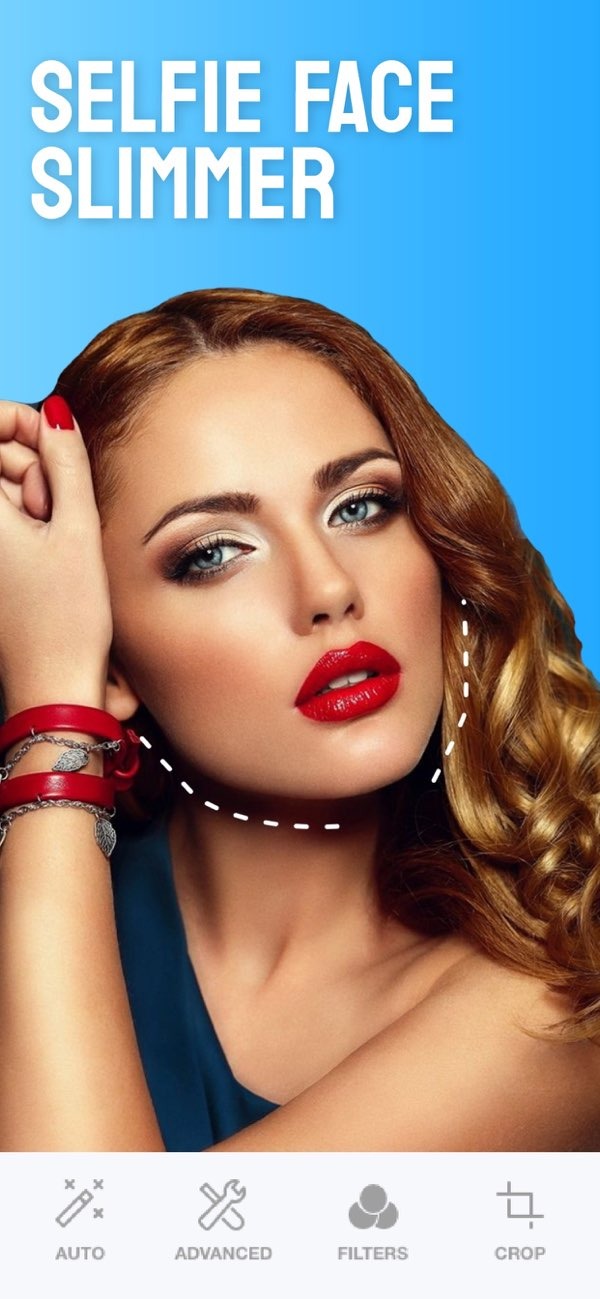
Double Chin Remover
This feature lets you adjust shadows and chin sliders to create a more defined jawline. It can improve the overall look of your selfies.
AI Hair Color Changer
The AI hair color changer includes adjustable hue and saturation settings. It lets you try different hair colors with little effort.

Makeup Filters
Try different makeup filters with a range of color options. These filters can highlight your features and help you create different looks.

Common Mistakes in Red-Eye Removal
Red-eye removal is usually easy, but some common mistakes can affect the final result:
- Over-Editing: If you apply the red-eye tool too strongly, the eyes can look fake or flat. Use a light touch so the eyes still look natural.
- Ignoring Other Edits: While fixing red-eye, do not forget other edits that can improve the photo. Small changes to lighting or color can also help.
- Using Low-Quality Photos: Red-eye removal works best on clear, high-resolution images. Start with the best quality photo you have for the best result.
Limitations and Trade-Offs
Selfie Editor offers strong tools for red-eye removal, but there are a few limits and trade-offs to keep in mind:
Natural Appearance: It can be hard to remove red-eye while keeping the eyes looking real. You may need to adjust the tool strength with care.

Complex Backgrounds: Photos with busy or detailed backgrounds may need extra work. This helps make sure the edit does not change other parts of the image.
Time Investment: Getting the exact look you want can take time, especially if you are new to editing. Practice and patience can help you get better results.
FAQs
Frequently Asked Questions
Can Selfie Editor be used on Android devices?
Right now, Selfie Editor is available for iOS devices. Check the App Store to confirm it works with your device.
Is the red-eye removal tool automatic?
The tool is applied manually. This gives you control over the strength and the exact area you want to fix.
Are there any costs associated with using Selfie Editor?
Selfie Editor may include in-app purchases or subscriptions for advanced features. Check the App Store for current pricing details.
How can I ensure my photos look natural after editing?
Use the tools lightly and make small changes. Aim for a balance between improvement and a natural look.
For more information on photo editing tools, visit the Editr Apps website.

If you’re ready to improve your photos and remove red-eye, download the Selfie Editor app on iOS today.