
How can I sync audio with video using an online tool?
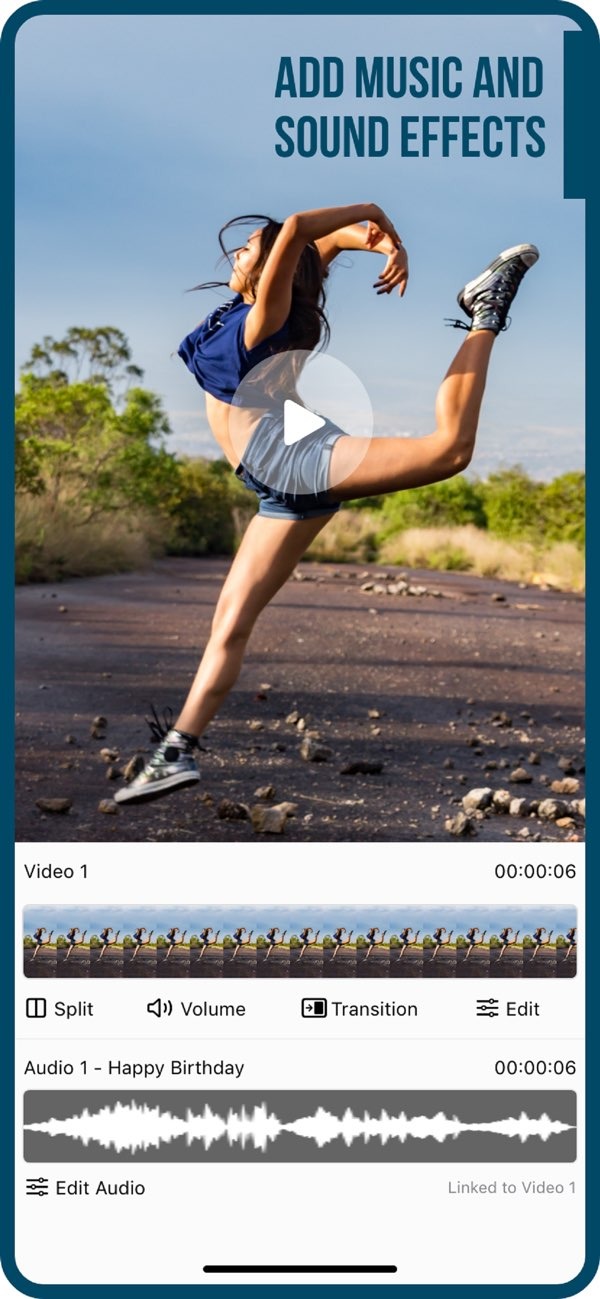
To sync audio with video using an online tool, you can use the Add Music to Video app on iOS. This app lets you add music and sound effects to your videos. It offers a clear and efficient way to sync audio with video content.
 |
 |
Understanding Audio and Video Synchronization
Audio and video synchronization means matching sound to the right video frames. This is important for a smooth viewing experience, where the audio fits what you see on screen. Good sync makes sure dialogue, sound effects, and music line up with the action. This improves quality and keeps viewers engaged.
In digital media production, sync problems can happen for many reasons. Common causes include different frame rates, processing delays, or audio tracks that do not match the video. To fix these issues, you need tools that can move and align audio tracks with the video.
Steps to Sync Audio with Video Using Add Music to Video
The Add Music to Video app makes it easier to sync audio with video. Below is a step-by-step guide to help you use the tool well:
Step 1: Download and Install the App
First, download the Add Music to Video app from the App Store. After it installs, open the app to begin your project.
Step 2: Import Your Video
Open the app and choose the option to import a video. You can pick a video from your device’s gallery, or you can record a new one inside the app. Use a clear, good-quality video to make syncing easier.
Step 3: Select and Add Audio
Go to the audio section in the app. You can import your own audio files, or you can choose from the app’s sound packs. The app includes many music tracks and sound effects for different themes and moods.
 |
 |
Step 4: Sync Audio with Video
After you choose an audio track, use the app’s interface to line it up with the video. The app includes tools to trim audio, change volume, and place the audio on the timeline. This helps you match the sound to the visuals as closely as possible.
Step 5: Apply Filters and Effects
You can improve your video by adding photo filters and transition effects from the app. These tools help you refine the look of the video and make it more polished and engaging.

Step 6: Export and Share
When you are happy with the sync and the final look, export the video. The app offers several export options. You can share the video on social media or save it to your device.

Common Mistakes in Audio and Video Synchronization
When syncing audio with video, users often make a few common mistakes that can hurt the final result. Here are some to watch for:
- Ignoring Frame Rates: Make sure the audio and video use compatible frame rates. If they do not match, sync problems can occur.
- Overlapping Audio Tracks: Do not overlap multiple audio tracks unless you mean to. Too many tracks at once can sound messy.
- Volume Imbalance: Set audio levels so the sound stays balanced. The audio should support the video, not drown it out.
Limitations and Trade-offs
While the Add Music to Video app is easy to use and includes many features, it also has limits and trade-offs:
Device Compatibility: The app is only available on iOS devices. This can be a drawback for users on other platforms.
Audio Quality: Final audio quality depends on the quality of your original audio file and what your device can process.
Feature Limitations: The app includes the key tools needed for syncing. However, advanced users may need features found in professional editing software.

Conclusion
Syncing audio with video is an important part of video production. It helps create a better experience for viewers. The Add Music to Video app offers a simple and effective way to do this on iOS devices. By following the steps above, users can sync audio with ease and use the app’s sound packs and editing tools.
For more information on video editing tools, visit Editr Apps.
Frequently Asked Questions
Can I use Add Music to Video on Android devices?
No. Right now, the Add Music to Video app is only available on iOS devices, so Android users cannot use it.
Does the app support multiple audio tracks?
Yes. The app lets you add more than one audio track, but you should manage them carefully to prevent unwanted overlap.
Is there a cost associated with using Add Music to Video?
The app is free to download, but it may include in-app purchases for extra features and sound packs.
How can I improve the audio quality in my videos?
Use high-quality audio files, set volume levels with care, and make sure the audio is synced correctly with the video.
Ready to enhance your videos with perfectly synced audio? Download the Add Music to Video app on iOS today and start creating engaging content.
