
How can I digitally restore old photos using an online tool?
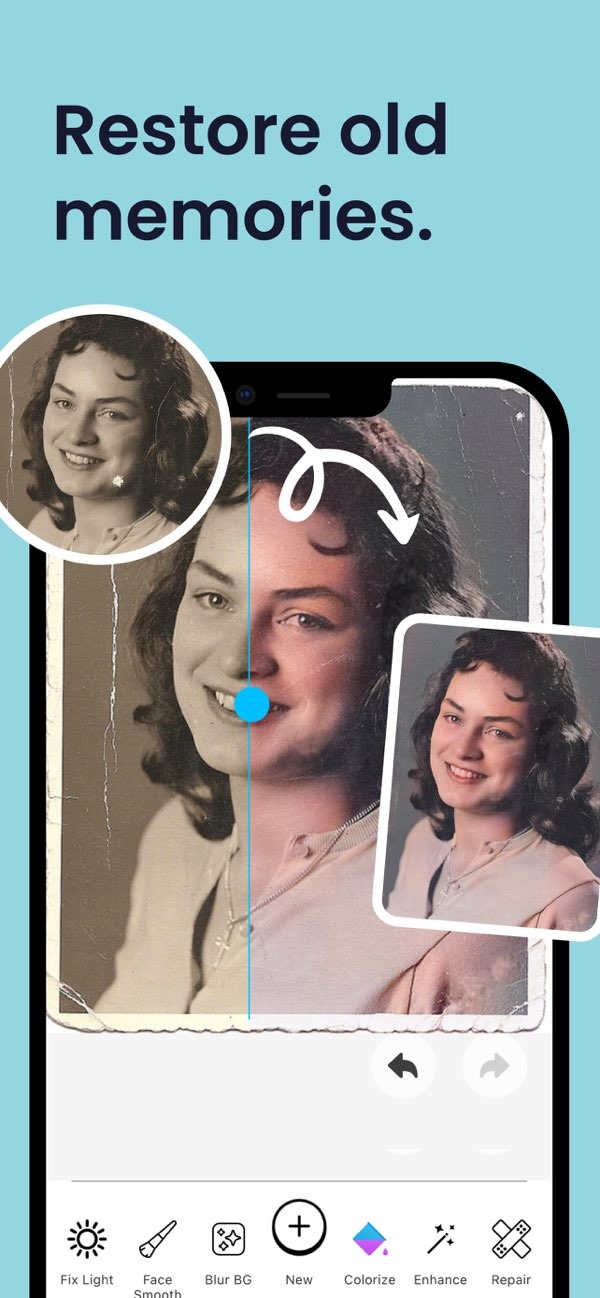
To digitally restore old photos, you can use the AI Photo Enhancer on iOS. This tool includes features like colorization, sharpening, and repair tools. These options can help you improve and restore your photos.
 |
 |
Understanding Digital Photo Restoration
Digital photo restoration means using software to fix and improve old photos. Over time, photos can fade, shift in color, or get damaged. Common issues include stains, scratches, and tears. The goal is to bring back detail, color, and clarity so the image looks closer to the original.
AI tools like AI Photo Enhancer can make this process easier. You do not need advanced editing skills to get started. The app uses algorithms to find common flaws and correct them. This creates a simpler, more guided editing experience.
Key Features of AI Photo Enhancer
AI Photo Enhancer includes several features that support photo restoration. These include:
- Colorization and Repair Tools: These tools can bring back faded color and fix visible damage, such as scratches.
- Vibrant Filters: AI-based filters can improve the overall look of a photo and make it appear more vivid.
- Portrait Auto Smoother: This feature reduces small flaws in portrait photos and helps refine facial details.
- Blur Photo Background: An adjustable slider lets you blur the background so the main subject stands out more.
- Low Light Enhancement: This tool improves photos taken in dim light and can reveal details that are hard to see.
Step-by-Step Guide to Restoring Photos
Restoring photos digitally can be simple with AI Photo Enhancer. Here’s a step-by-step guide:
Step 1: Download and Install the App
First, download the AI Photo Enhancer app from the App Store and install it on your iOS device.
Step 2: Upload Your Photo
Open the app and upload the photo you want to restore. The app supports several image formats, so it works with most digital photos.
Step 3: Use the Colorization Tool
Choose the colorization tool to improve faded colors. The AI will detect areas that need color changes and apply corrections automatically.
Step 4: Apply Repair Tools
Use the repair tools to fix visible damage, such as scratches or tears. The app also offers a preview option, so you can review the edits before you save them.
Step 5: Enhance with Filters
Apply vibrant filters to improve the overall look of your photo. You can change the filter strength to match your preference.
 |
 |
 |
Common Mistakes and How to Avoid Them
When restoring photos, some mistakes can reduce image quality. Here are common issues and ways to avoid them:
Overuse of Filters
Too many filters can make a photo look unnatural. Use filters in small amounts and adjust the intensity to keep the photo looking realistic.
Ignoring Resolution Settings
If you restore a photo at low resolution, you may lose detail. Check the resolution settings and choose the best option for high-quality output.
Skipping the Preview Option
Some users skip the preview option and save edits without checking them. Always preview your changes to confirm they look right before saving.
Limitations and Trade-offs
AI Photo Enhancer offers strong restoration tools, but it also has limits and trade-offs:
AI Limitations
AI may not always understand complex details in an image. In some cases, the results may not match the original photo closely. When this happens, manual adjustments may be needed.
Trade-offs in Processing Time
High-quality restoration can take more time, especially with large files. Processing time can vary based on file size and the amount of damage in the photo.
Frequently Asked Questions
Is AI Photo Enhancer suitable for beginners?
Yes, AI Photo Enhancer has a user-friendly interface, so beginners can restore photos without advanced editing skills.
Does the app support batch processing of photos?
Currently, AI Photo Enhancer focuses on one photo at a time to help maintain quality, but future updates may add batch processing.
Can I undo changes made in AI Photo Enhancer?
Yes, the app lets you undo changes and return to the original photo when needed, which gives you more control while editing.
What file formats does AI Photo Enhancer support?
AI Photo Enhancer supports several file formats, including JPEG, PNG, and TIFF, which covers most digital photos.
For those who want to restore old photos digitally, Editr Apps offers AI Photo Enhancer. Download the app on iOS and begin restoring your photos: AI Photo Enhancer.

