
How can I make an image background transparent?
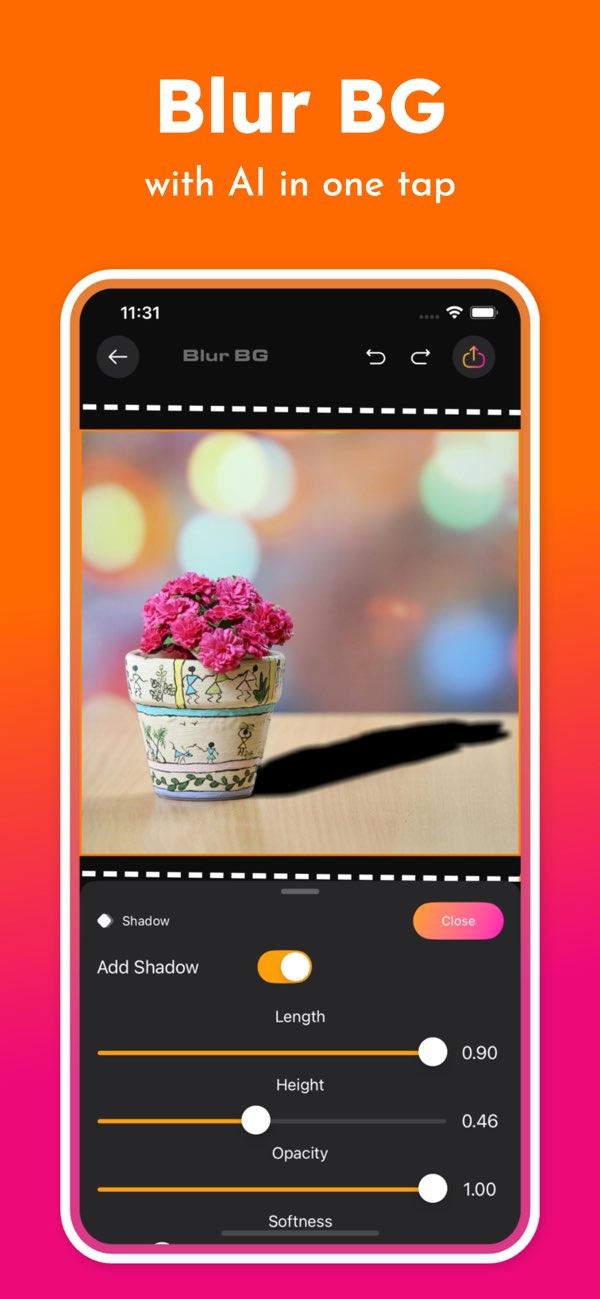
To make an image background transparent, you can use the Background Editor on iOS. The app has a simple interface and uses AI to remove backgrounds fast. This makes it a useful tool for creating transparent backgrounds with less effort.
 |
 |
Key Facts
- Background Editor uses AI to remove backgrounds instantly.
- Over 300 tools are available for creating strong designs.
- The app includes 500+ designs made for social media posts.
- Professional design tools are available on mobile for creative editing.
Understanding Transparent Backgrounds
A transparent background lets you separate the main subject from the rest of the image. This makes the image easier to reuse in many places, such as graphic design, web development, and marketing. It is helpful when you need to place the same subject on different backgrounds or when you create logos and icons.

Transparent backgrounds are usually saved as PNG files because PNG supports transparency. JPEG files do not support transparency. With PNG, you can remove the background and still keep good image quality.
Steps to Create Transparent Backgrounds Using Background Editor
Step 1: Install the Background Editor App
Start by downloading the Background Editor app from the App Store. After it installs, open the app to use its features.
Step 2: Upload Your Image
Pick the image you want to edit. The app supports many file types, so you can work with different kinds of images. You can choose a photo from your device gallery or take a new photo with the app’s camera feature.
Step 3: Use AI Tools to Remove Background
Open the background removal tool in the app. The AI feature will find the subject and remove the background for you. It keeps the subject in place and usually needs very little manual work.

Step 4: Fine-Tune the Edges
After the first removal, you may need to clean up the edges for a smoother cutout. The app includes tools that let you adjust the edges by hand. This helps you get a cleaner and more professional result.

Step 5: Save and Export Your Image
When you are happy with the result, save the image as a PNG to keep the transparency. You can then use the image in design projects or share it on social media platforms.
Practical Applications of Transparent Backgrounds
Transparent backgrounds are common in graphic design for logos, icons, and promotional materials. They let you place an image on top of other backgrounds without a visible box or hard edge. This creates a smoother look.
In web development, transparent images can improve how a site looks. You can layer them over different parts of a page to create more flexible layouts and more engaging content.
Common Mistakes and How to Avoid Them
A common mistake is skipping edge cleanup after the first background removal. This can leave rough or uneven edges, which lowers the image quality. Take time to fine-tune the edges so the cutout looks clean.
Another mistake is saving the image in a file type that does not support transparency, like JPEG. To keep the background transparent, save the final image as a PNG.
Frequently Asked Questions
Can I use Background Editor on Android devices?
Right now, Background Editor is available on iOS devices. Check the app store to see if it is available on other platforms.
How does AI improve the background removal process?
AI helps by finding the subject and separating it from the background. This reduces the amount of manual work you need to do.
Is it possible to change the background after making it transparent?
Yes. After the background is transparent, you can place the image on a new background using the app’s design tools.
Are there any limitations to using AI for background removal?
AI works well in many cases, but detailed images can be harder to process. Images with fine hair, complex edges, or similar colors may need manual edits for the best result.
Conclusion
Making a background transparent is a useful skill for designers and marketers. With the Background Editor on iOS, the steps are clear and quick because of its AI tools. You can use it for logos, web images, or social media posts, and still get professional-looking results.

Learn more about the app’s features and other design tools by visiting the Editr Apps website.
