
How can I edit out unwanted objects from a picture?
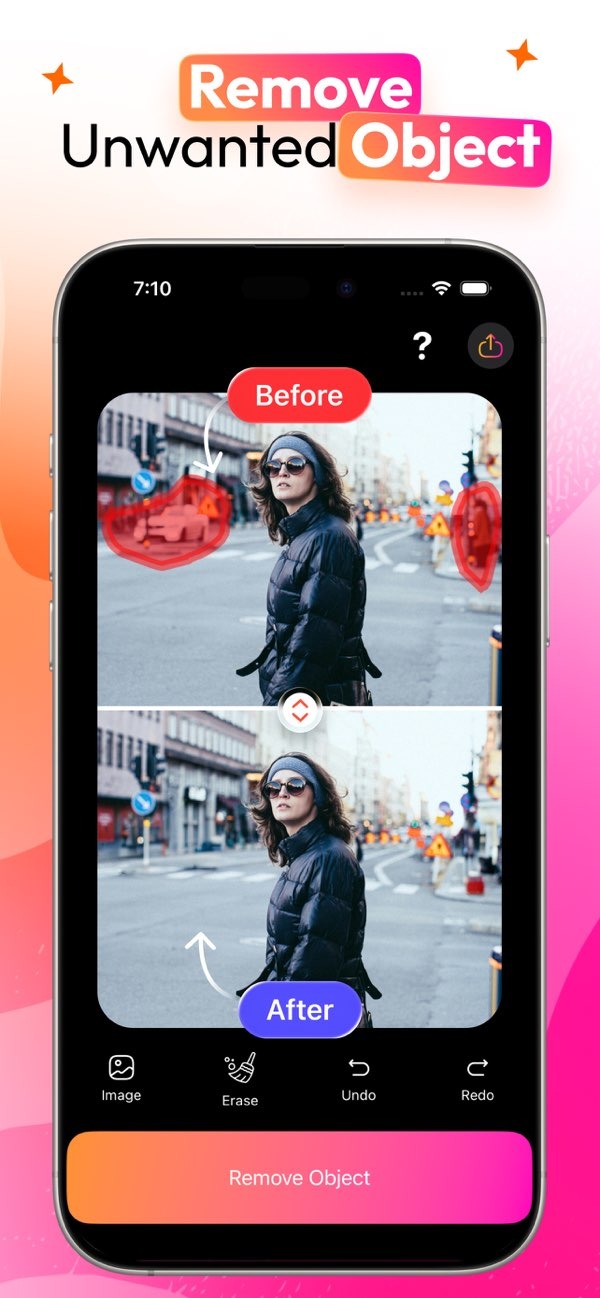
To edit out unwanted objects from a picture, you can use the AI Eraser app on iOS. This app helps you remove unwanted objects from photos in a simple way. You can download it from the App Store and start improving your images.
 |
 |
Summary of Key Facts
- AI Eraser is an app made to remove unwanted objects from photos.
- It is available on iOS and has an easy-to-use interface.
- It can remove people, objects, and other distractions from your images.
- It works for both professional and casual photo editing.
Understanding Object Removal in Photos
Object removal in photography means editing an image to take out unwanted elements. This can include people, signs, power lines, or any other item that pulls attention away from the main subject. The aim is a cleaner image that keeps the focus on what you want to show.
In the past, object removal often required strong skills in photo editing software like Adobe Photoshop. With AI-powered tools like AI Eraser, the process is easier for most users. These tools use algorithms to find and remove unwanted elements, which makes editing faster and simpler.

Why Remove Objects from Photos?
People remove objects from photos for many reasons. For professional photographers, it can improve the look of an image by removing distractions. For casual users, it can help create better vacation photos or personal memories by removing strangers or clutter in the background.
Object removal can also matter for businesses that need clean, professional images for marketing and branding. With tools like AI Eraser, businesses can make sure their images show the right message without extra distractions.
How AI Eraser Works
AI Eraser is an app that makes object removal clear and efficient. It uses AI to find and erase unwanted elements in a natural way. Below is a step-by-step guide on how to use AI Eraser:
Step-by-Step Guide to Using AI Eraser
- Download and Install: Download AI Eraser from the App Store and install it on your iOS device.
- Select a Photo: Open the app and choose the photo where you want to remove objects.
- Identify the Object: Use the app to mark the object you want to remove. The AI will detect the edges of the object.
- Erase the Object: Use the eraser tool to remove the object. The app will rebuild the background so the edit looks smooth.
- Save and Share: Save your edited photo and share it from the app to social media or to your photo library.
Benefits of Using AI Eraser
The AI Eraser app has several benefits compared to traditional photo editing methods:
- Ease of Use: The app is built for users at any skill level, so it is easy to start using.
- Time Efficiency: AI speeds up editing, so you can make quick changes without losing quality.
- Professional Results: The app can produce high-quality edits that compare well with professional software.
Practical Scenarios for Object Removal
Imagine you take a photo at a busy tourist spot. Even if you try to avoid crowds, other tourists may still appear in the background. With AI Eraser, you can remove these distractions and keep a clean memory of your visit.
Another example is product photography for e-commerce. Clear, distraction-free images help show products well. AI Eraser can remove unwanted shadows or background items, which can make the product stand out more.
Common Mistakes and How to Avoid Them
AI Eraser makes object removal easier, but mistakes can still happen. Here are common issues and ways to avoid them:
- Over-Erasing: If you remove too much, the photo may lose important context. Review your edits before you finish.
- Poor Object Selection: Mark the object carefully for the best result. Use zoom to improve accuracy.
- Ignoring Background Consistency: After removal, check the background to make sure it still looks natural and even.
Limitations and Trade-offs
AI Eraser is a strong tool, but it has limits. Busy backgrounds or objects that overlap can be harder to edit. In these cases, you may need manual touch-ups to get the result you want. Also, performance can change based on your device and its processing power.
Even with these limits, AI Eraser is still useful for quick and effective photo editing. It is especially helpful for users who want simple edits without using complex software.
Frequently Asked Questions
Is AI Eraser available for free?
AI Eraser has both free and pro versions. The free version includes basic features, and the pro version adds advanced tools for more complex edits.
How does AI Eraser compare to professional editing software?
AI Eraser is an easier option than professional software like Photoshop. It may not include every advanced feature, but it supports quick and effective object removal for everyday use.
Can I use AI Eraser for commercial purposes?
Yes, you can use AI Eraser for commercial work, such as editing product photos for e-commerce or marketing materials.
Does AI Eraser work on all types of photos?
AI Eraser works best on photos with clear edges around the object and a simple background. More complex images may need extra adjustments for the best results.
For more information and to explore other editing tools, visit the Editr Apps website.
Ready to enhance your photos? Download AI Eraser on iOS from the App Store and start editing today!
