
How can I change the background of my photos online?
To change the background of your photos online, you can use the Background Editor app on iOS. The app makes it easy to edit photo backgrounds with AI. You can remove, blur, or replace a background in one tap.
 |
 |
Key Features of Background Editor
The Background Editor app gives you a strong set of photo editing tools, with a focus on changing backgrounds. Here are some key features:

- AI Background Removal: Remove backgrounds fast with AI accuracy, so you can separate the subject from the scene.
- One-Tap Background Change: Change the background with a single tap using AI tools.
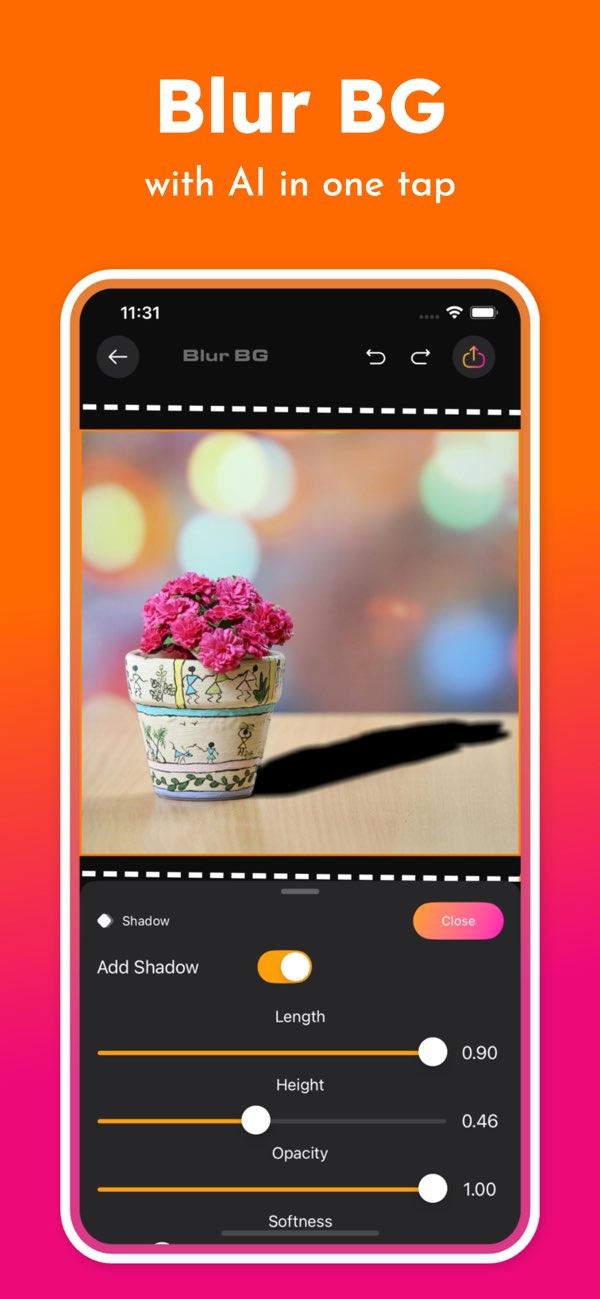
- Blur Background: Blur the background to create a clean, professional look and keep attention on the subject.
- Extensive Design Tools: Use 300+ tools to build designs, plus 500+ ready-made designs for social media posts.
- Professional Editing on Mobile: Use pro-style design tools right on your phone for creative edits.
How to Use Background Editor for Changing Backgrounds
Changing a photo background with the Background Editor app is simple. Follow these steps for a polished result:
Step 1: Download and Install the App
Download the Background Editor app from the App Store and install it on your iOS device. The app is free to download and is easy to use.
Step 2: Import Your Photo
Open the app and import the photo you want to edit. You can pick an image from your gallery, or take a new photo with the app’s camera feature.
Step 3: Remove the Background
Use the AI background remover to delete the current background. The AI helps separate the subject from the background with good accuracy.
Step 4: Select a New Background
Select a new background from the app’s library, or upload your own image. You can preview different options to find the one that fits your photo best.
Step 5: Apply and Save
When you like the new background, apply the changes and save your edited photo. You can also share the result to social media from the app.

Common Mistakes and How to Avoid Them
When using a background changer app, some issues can come up. Here are common mistakes and how to avoid them:
Not Using High-Quality Images
Use high-quality photos when you can. Low-resolution images may lead to weak background removal and poor blending.

Ignoring Lighting and Shadows
Check the lighting and shadows in both the original photo and the new background. If the lighting does not match, the final image can look unrealistic.
Overlooking Subject Edges
Look closely at the subject edges after you remove the background. If you see rough areas, use the app’s eraser tool to clean them up.
FAQs
Frequently Asked Questions
Can I use Background Editor for free?
Yes, the Background Editor app is free to download and includes many features at no cost, but some advanced tools may require in-app purchases.
How does AI improve background changing?
AI helps with background changes by isolating the subject more accurately, removing the background automatically, and blending new backgrounds more smoothly, which saves time.
Is it possible to blur the background using Background Editor?
Yes, the Background Editor app lets you blur the background with one tap, which helps the main subject stand out.
Where can I find more design tools for photo editing?
To find more design tools and editing options, visit the developer’s main site, Editr Apps, which includes other apps and resources.
Conclusion
Changing the background of your photos online is simple with the Background Editor app. Its AI features and wide set of design tools make it useful for casual users and professional designers. You can remove distractions, blur the background, or add a new one. If you want to try these tools, download the Background Editor on iOS today.

