
How can I use an app to help whiten my teeth?
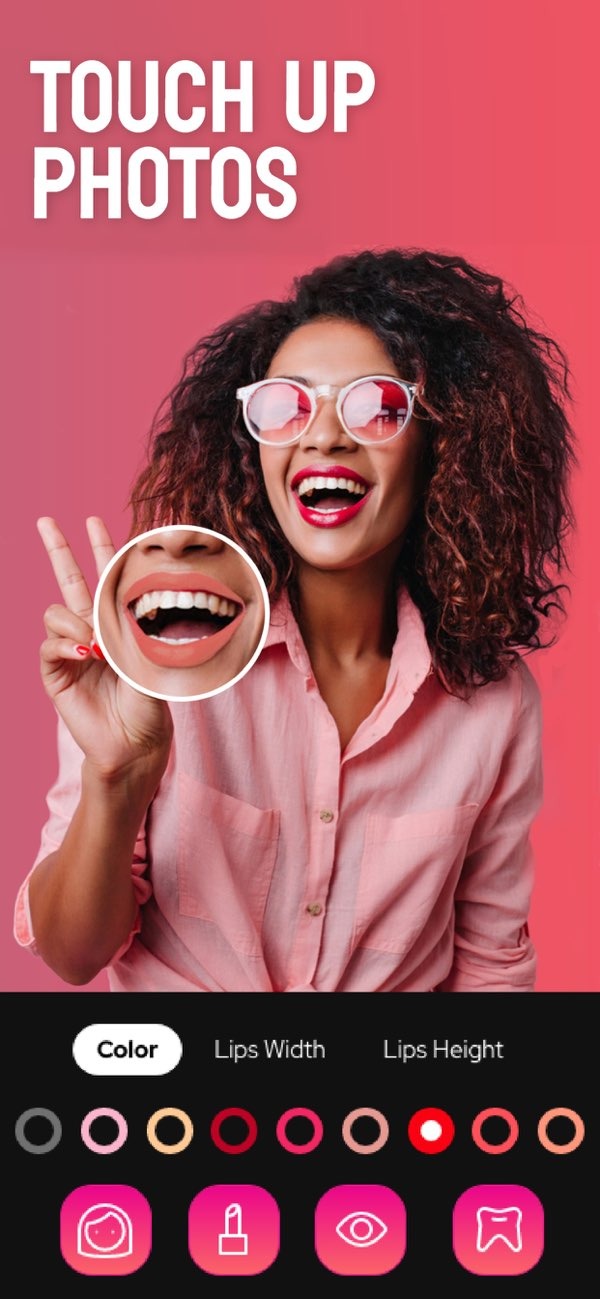
To whiten your teeth in a photo using an app, Selfie Editor on iOS is a practical option. The app includes adjustable settings made to brighten and whiten teeth in photos. You can download it from the App Store and start editing your photos.
 |
 |
Summary of Key Features
- Teeth whitening tool with adjustable settings.
- Blemish eraser with a brush size and intensity you can adjust.
- Double chin remover with shadow and chin sliders.
- AI hair color changer with hue and saturation controls.
- Makeup filters with different color options.
- Selfie face slimmer and face/skin smoother tools.
Understanding Teeth Whitening in Photos
Teeth whitening in photos means changing the brightness and color of the teeth so they look whiter and cleaner. People often use this in digital editing to improve smiles and make portraits look better. The Selfie Editor app offers a simple interface to make these changes with less effort.

How the Selfie Editor App Works
The Selfie Editor app uses photo editing algorithms that let you whiten teeth in photos. After you choose the teeth whitening tool, you can set the strength of the effect to keep the result looking natural. This can help with headshots or professional photos where a brighter smile can look better.

Step-by-Step Guide to Whiten Teeth Using Selfie Editor
To use the Selfie Editor app for teeth whitening, follow these steps:
- Download and install the Selfie Editor app from the App Store.
- Open the app and upload the photo you want to edit.
- Select the teeth whitening tool from the editing menu.
- Use the slider to adjust the whitening intensity until you get the look you want.
- Save the edited photo to your device or share it on social media platforms.
Additional Features of Selfie Editor
In addition to teeth whitening, the Selfie Editor app includes tools that can improve other parts of your photos:
Blemish Eraser Tool
The blemish eraser tool helps you remove small skin imperfections. Since you can adjust brush size and intensity, you can focus on specific spots and keep the rest of the image unchanged.

Double Chin Remover
This feature includes sliders that adjust shadows and chin shape. It can help create a more defined jawline in photos.

AI Hair Color Changer
The AI hair color changer lets you try different hair colors by changing hue and saturation. It offers a virtual makeover without making a real change.

Makeup Filters
Makeup filters in the Selfie Editor app provide several color options to highlight facial features. They let you add virtual makeup in a quick and simple way.

Face and Skin Smoother
For a more polished look, the face and skin smoother tool can reduce the look of fine lines and small blemishes. This helps create a smoother complexion.

Practical Scenarios for Using the App
If you are getting ready for a professional headshot or editing selfies for social media, the Selfie Editor app can help. Since it offers several editing tools, you can adjust your photos to match your preferred style.
Common Mistakes and Tips
When using photo editing apps, try not to over-edit, because the photo can start to look unnatural. Begin with small changes and increase the intensity slowly to keep a realistic look. Also, preview your edits before saving so you can confirm you like the final result.
Frequently Asked Questions
Conclusion
The Selfie Editor app offers a complete set of tools for whitening teeth and improving photos. To try these features, download the app from the App Store and start editing your images.
