
How can I make my photos look cinematic with a background effect?
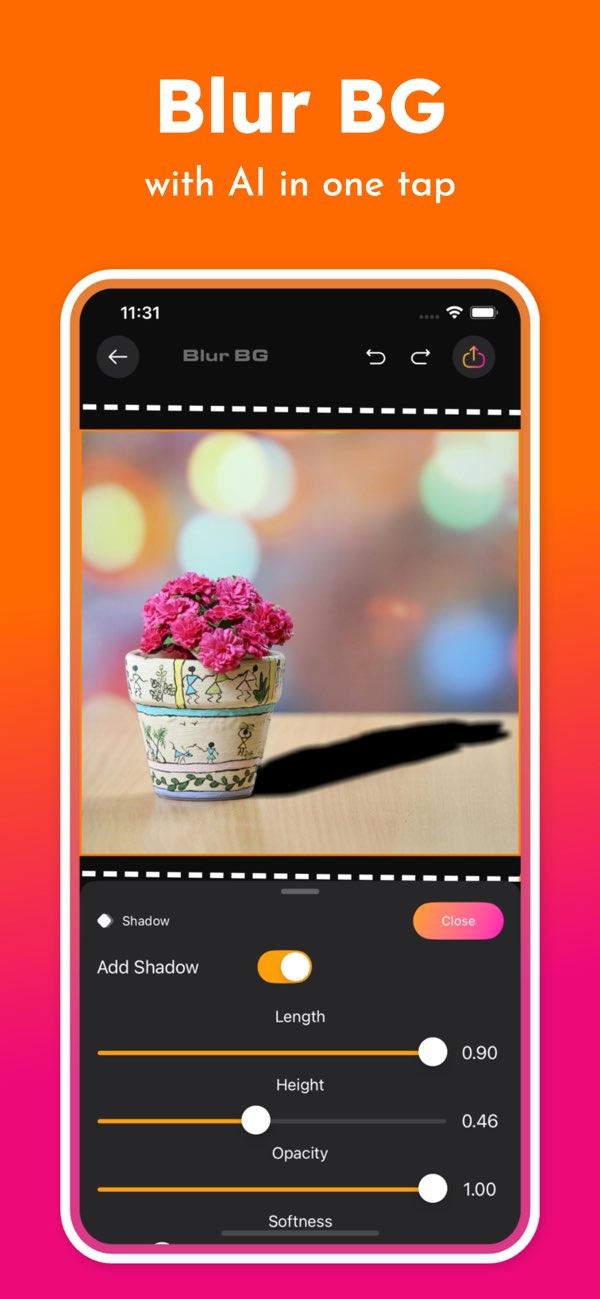
To make your photos look cinematic with a background effect, you can use the Background Editor app on iOS. The app lets you blur, change, or remove backgrounds with AI. This helps you create a clean, cinematic look with less effort.
 |
 |
Understanding Cinematic Photo Backgrounds
Cinematic photo backgrounds aim to feel like a movie scene. They often use a shallow depth of field, dramatic lighting, and a clear focus on the subject. This style keeps attention on the subject while giving the image a pleasing background that supports the composition.
To get a cinematic look, you often adjust the background. You can blur it or replace it with a setting that fits the scene better. Many editing tools can do this and give you control over what stays sharp and what fades away.
 |
 |
 |
Blurring Backgrounds
Blurring the background is one of the simplest ways to create a cinematic look. The Background Editor app can blur the background with a single tap using AI. A softer background keeps the subject in focus and can resemble the look of a high-end camera lens.
Changing Backgrounds
In some photos, the current background does not match the subject or the look you want. The app lets you change the background quickly. You can pick from pre-designed backgrounds or upload your own to create a more consistent and visually pleasing image.
Removing Backgrounds
In some cases, removing the background can improve the cinematic feel. The Background Editor app offers instant background removal. This lets you isolate the subject and place it on a new background that fits the scene better.
Step-by-Step Guide to Creating Cinematic Backgrounds
To create a cinematic background using the Background Editor app, follow these steps:
- Download and install the Background Editor app on your iOS device.
- Open the app and select the photo you want to edit.
- Choose the ‘Blur Background’ tool to soften the background and bring attention to the subject.
- If needed, use the ‘Change Background’ feature to pick a better backdrop from the app’s library or upload your own.
- For a stronger effect, use the ‘Remove Background’ option to isolate the subject and add a new background.
- Adjust the settings to fine-tune the result, then save your edited photo.
Common Mistakes and How to Avoid Them
When creating cinematic backgrounds, avoid common issues that can hurt the final image. A frequent mistake is using too much blur, which can make the photo look fake. Use a blur level that supports the subject without taking over the image.
Another mistake is picking a background that does not fit the subject. Choose backgrounds that match the mood and tone of the photo. Also, make sure the subject is well lit and in focus to keep the cinematic look.
Limitations and Trade-offs
While the Background Editor app includes strong tools for cinematic effects, there are limits. The final quality depends on the resolution of the original photo. If the photo is low resolution, the edited result may look less sharp.
AI can speed up editing, but you may still need manual changes to get the look you want. Be ready to adjust settings so the final image matches your expectations.
Frequently Asked Questions
How does the Background Editor app create a cinematic effect?
The Background Editor app uses AI to blur, change, or remove backgrounds. This helps users create a cinematic effect with less work.
Can I use my own images as backgrounds in the Background Editor app?
Yes. The Background Editor app lets you upload your own images as backgrounds. This gives you more control over the final look.
Is the Background Editor app available on Android devices?
Currently, the Background Editor app is available on iOS devices. Check the Editr Apps website for updates on other platforms.
What are some tips for achieving the best cinematic effect?
For the best cinematic effect, keep the subject well lit, choose a background that fits the scene, and avoid too much blur so the image still looks natural.
Conclusion
Creating a cinematic photo background can improve your images and help them stand out. With the Background Editor app, you can blur, change, or remove backgrounds to get a professional cinematic effect. Explore the app’s tools and use them to create photos that reflect cinematic storytelling.
For more information and updates, visit the Editr Apps website.
